Table of Contents
Background
NodeJS is an increasingly popular tool for back-ending modern applications. NodeJS is really good at file and text and various NoSQL data operations, but Image and document processing are not its strengths. DotImage Document Imaging excels in those areas.
This whitepaper will provide a tutorial on how you can use DotImage running in .NET8 (NOTE: it must be hosted in Windows - we have hard dependencies which mean that true cross platform (Linux) is not possible - Please see FAQ: Support for ASP.NET Core / .NET Core / .NET 5 / 6 / 7 / 8 / 9 / 10+)
Back to Top
Goals
The goal of this exercise will be to provide a guide / tutorial on building a Class Library with DotImage that will then be consumed by a NodeJS application. In this example we will have the library accept input parameters such as input file, output file, and a request to run a ResampleCommand with various properties against the input file and have it save out a resampled image file and report back to NodeJS about the operation.
Back to Top
Implementation
Implementation will require two separate parts
- Build a .NET8 (windows) Class Library (written in C#) that will expose an API for a novel command that will use DotImage to process arbitrary files (this will include a simple wrapper console app to make testing and debugging of the DotImage components)
- A minimal NodeJS application that is able to make calls into the Class Library created in step 1 to pass in parameters for the library to work on and have the library report back its status when complete
Back to Top
Assumptions / Dependencies / Prerequisites
There are several assumptions/dependencies here. We will be targeting .NET 8 with C# for the Class Library and NodeJS with Edge-js.
Atalasoft DotImage
You must have installed Atalasoft DotImage Document imaging (example based on 11.5.0.9). You can download the latest from the DotImage SDK Download Page.
You must have either a valid paid license for Atalasoft DotImage or have a valid evaluation license.
Visual Studio
You need to have MS Visual Studio (Our examples will be in VS2022). Any version that supports .NET 8 development/targeting will suffice. (even the free Visual Studio Community version should work).
.NET 8 SDK / Runtime
You will need to have the .NET 8 SDK installed on the machine where you're going to build and test the class library
Users who run the solution may need to have the .NET Desktop Runtime
[!NOTE] NOTE
You can't just install the .NET8 runtime, it MUST be the desktop runtime
Also, targeting Linux is not supported.
Visual Studio Code (VSCode)
For the NodeJS component, Our examples will assume you're using Visual Studio Code (VSCode) as your IDE. In theory one could use just about any editor,
NodeJS
The tutorial will provide guidance on ensuring you have NodeJS and the Edge-JS package dependency
Back to Top
Getting Started - The Class Library
Initial Project Creation
- Create a new empty folder that will contain the entire project, name it
DotImageNodeJsDemo
- Add a new subdirectory called
sampleImages - this will be where you place your input file for testing
- For this test we will use a PDF named "eric.tif" You are welcome to substitute your own image(s) (that's kind of the point actually...) but you'll need to edit the inFile path in the appropriate code below.
- Fire up VS2022 and create a New Project (
File->New->Project)

- On the "Create New Project" dialog that comes up, select
C#, Windows, Library or search for Class Library. Note, its just a basic Class Library, not Razor and not .NET Framework, and hit Next
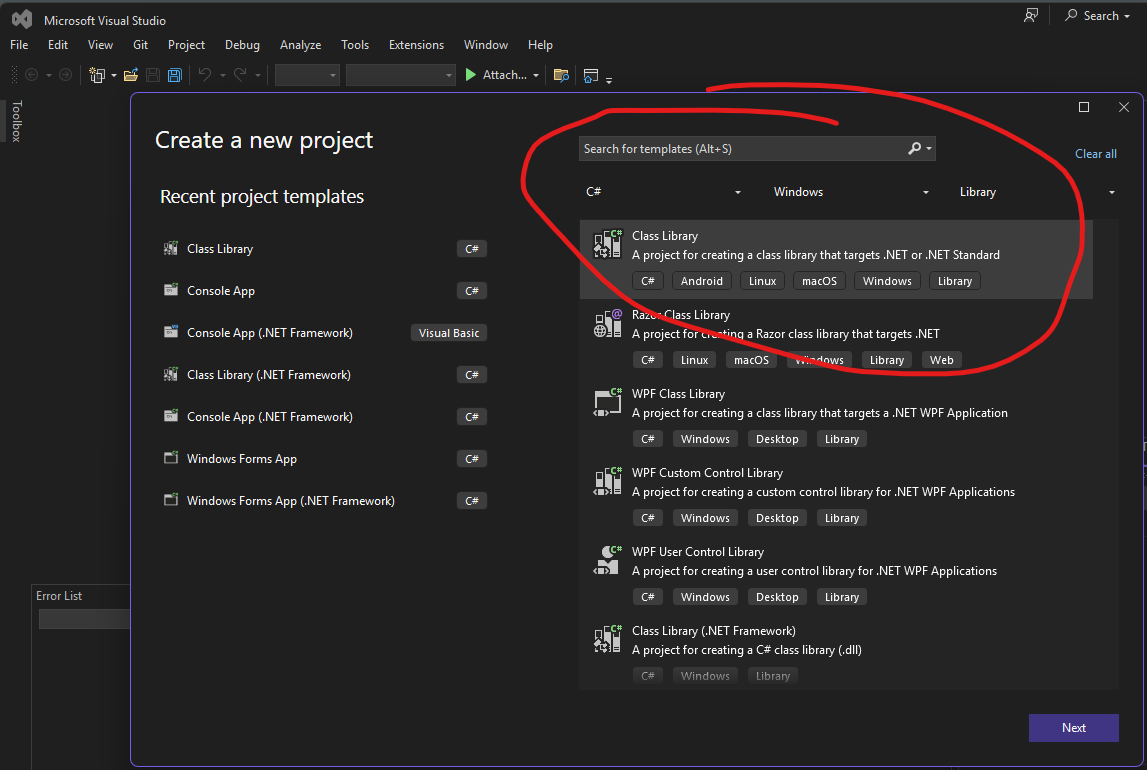
- On the "Configure your new project" dialog, configure it with Project Name:
AtalaImageProcessing
- Please UNCHECK the option for
Place solution and project in the same directory
- Ensure the Solution name is also
AtalaImageProcessing
- hit Next

-
On the "Additional information" dialog, select .NET 8.0 (Long Term Support) and hit Create
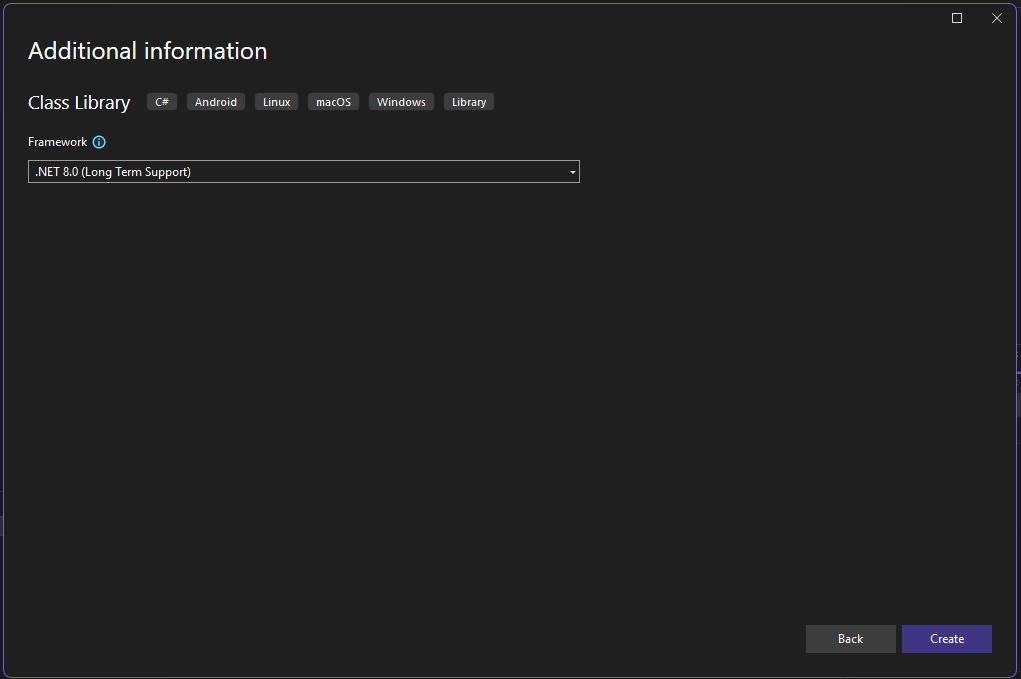
-
You have successfully created the project
Back to Top
Project Configuration
- In
Solution Explorer, right click on AtalaImageProcessing project and select Edit Project File
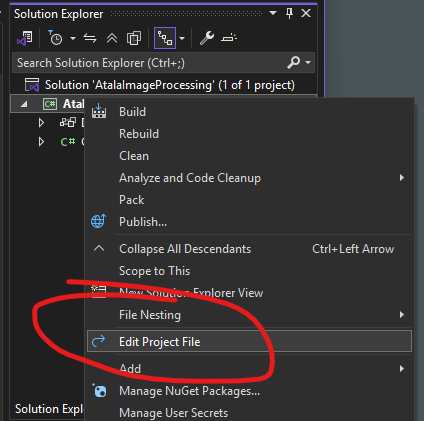
- Your Project file should look like this:
<Project Sdk="Microsoft.NET.Sdk">

  <PropertyGroup>
    <TargetFramework>net8.0</TargetFramework>
    <ImplicitUsings>enable</ImplicitUsings>
    <Nullable>enable</Nullable>
  </PropertyGroup>

</Project>
- Change
<TargetFramework>net8.0</TargetFramework> to <TargetFramework>net8.0-windows</TargetFramework>
- Directly beneath that, add
<UseWindowsForms>true</UseWindowsForms>
- beneath that, add
<PlatformTarget>x64</PlatformTarget>
- Your project file will now look like this:
<Project Sdk="Microsoft.NET.Sdk">

  <PropertyGroup>
    <TargetFramework>net8.0-windows</TargetFramework>
    <UseWindowsForms>true</UseWindowsForms>
    <PlatformTarget>x64</PlatformTarget>
    <ImplicitUsings>enable</ImplicitUsings>
    <Nullable>enable</Nullable>
  </PropertyGroup>

</Project>
Back to Top
Referencing Atalasoft DotImage
-
In Solution Explorer under the AtalaImageProcessing project there is a Dependencies section
-
Right-click on dependencies and choose Add Project Reference
-
In the dialog for Reference Manager - AtalaImageProcessing find the Browse Option on the left side menu and click it
-
At the bottom, click Browse and navigate to C:\Program Files (x86)\Atalasoft\DotImage 11.5\bin\6.0\x64
-
use CTRL+ click to select ALL OF THE FOLLOWING:
"Atalasoft.Shared.dll" "Atalasoft.dotImage.dll" "Atalasoft.dotImage.Lib.dll"
-
And click Add

-
When you return to the Reference Manager - AtalaImageProcessing, you should now have the three assemblies checked. Click OK
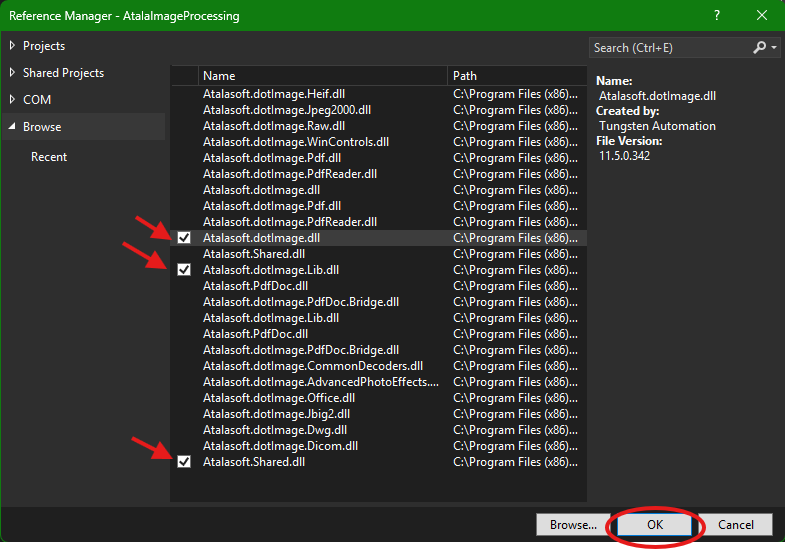
-
With that DotImage is ready to be used.
Back to Top
Adding Helper Classes
- We will be adding two helper classes: AtalaHelpers and ExpandoHelpers
AtalaHelpers
These are convenience methods specific to Atalasoft classes
-
Right-click on Class1.cs in the Solution Explorer, and rename it to AtalaHelpers.cs
[!note] NOTE
It will ask if you want to rename - Click Yes

-
Add the static keyword to the AtalaHelpers Class def (making it change from internal class AtalaHelpers to internal static class AtalaHelpers)
-
Inside the class, paste the following code
/// <summary>
/// Convenience method to save you having to use the TryParse in your code elsewhere
/// </summary>
/// <param name="methodName"></param>
/// <returns></returns>
internal static ResampleMethod ParseResampeMethodName(string methodName)
{
    ResampleMethod returnVal = ResampleMethod.Default;
    Enum.TryParse(methodName, out returnVal);
    return returnVal;
}

/// <summary>
/// A convenience method to take a string with a file extension
/// and provide the appropriate ImageEncoder
/// </summary>
/// <param name="type"></param>
/// <returns></returns>
internal static ImageEncoder GetEncoderByType(string type)
{
    switch (type)
    {
        case ".png":
            return new PngEncoder();
        case ".jpg":
        case ".jpeg":
            return new JpegEncoder();
        default:
            return new TiffEncoder();
    }
}
ExpandoHelpers
These are convenience methods to assist with the conversion from certain standard objects and structs to dynamic ExpanoObject
- Right-Click in Solution Explorer on the
AtalaImageProcessing project and select Add->Class
- Name your new class ExpandoHelpers.cs
- Open/edit the ExpandoHelpers.cs to ensure it is a
public class (not internal) and add the static keyword to the class def: internal class ExpandoHelpers to public static class ExpandoHelpers
- Paste in the following code:
/// <summary>
/// Convenience method to Take an incoming object and return it as a dynamic (ExpandoObject)
/// </summary>
/// <param name="inThing"></param>
/// <returns></returns>
public static dynamic ObjToExpando(object inThing)
{
    dynamic returnVal = new ExpandoObject();

    switch (inThing.GetType().ToString())
    {
        case "System.Drawing.Size":
            System.Drawing.Size inSize = (System.Drawing.Size)inThing;
            returnVal.width = inSize.Width;
            returnVal.height = inSize.Height;
            break;
        case "System.Drawing.Rectangle":
            System.Drawing.Rectangle inRect = (System.Drawing.Rectangle)inThing;
            returnVal.width = inRect.Width;
            returnVal.height = inRect.Height;
            returnVal.x = inRect.X;
            returnVal.y = inRect.Y;
            break;
        case "System.Drawing.RectangleF":
            System.Drawing.RectangleF inRectf = (System.Drawing.RectangleF)inThing;
            returnVal.width = inRectf.Width;
            returnVal.height = inRectf.Height;
            returnVal.x = inRectf.X;
            returnVal.y = inRectf.Y;
            break;
    }
    return returnVal;
}

/// <summary>
/// Safely gets a nested property value from an ExpandoObject using a property path (e.g., "Address.City").
/// </summary>
/// <param name="expando">The root ExpandoObject.</param>
/// <param name="propertyPath">Dot-separated property path (e.g., "Address.City").</param>
/// <param name="value">Output: The retrieved value (or null if not found).</param>
/// <returns>True if the property was found; false otherwise.</returns>
public static bool TryGetNestedPropertyValue(
    ExpandoObject expando,
    string propertyPath,
    out object value)
{
    value = null;
    if (expando == null || string.IsNullOrEmpty(propertyPath))
        return false;

    // Split path into segments (e.g., "Address.City" ? ["Address", "City"])
    string[] segments = propertyPath.Split('.');
    object current = expando;

    foreach (string segment in segments)
    {
        // If current object is not a dictionary, we can't proceed
        if (!(current is IDictionary<string, object> currentDict))
            return false;

        // Try to get the next segment's value
        if (!currentDict.TryGetValue(segment, out current))
            return false;
    }

    value = current;
    return true;
}
Back to Top
Startup Class
[!note] NOTE
As much as we would love to just make our new library static, edge-js is not happy with that, so we will need to play nicely with it
- Once again, start in Solution Explorer, Right-click on the
AtalaImageProcessing project and select Add->Class
- Name your new class
Startup.cs
- Open the Startup.cs file if its not open already
- add a new public default constructor
public Startup() { }
- Below that paste in the following ginormous amount of code:
/// <summary>
/// NOdeJS edge-js expects to pass out a dynamic call and receive back a Task<object>
/// </summary>
/// <param name="input"></param>
/// <returns></returns>
public async Task<object> Resample(dynamic input)
{
    // We will use this to build a log of action and send it as the return
    StringBuilder logger = new StringBuilder();

    /*
      * Resample needs an input file
      * output file
      * destination size
      *
      * REsampleCommand has a lot of options but we are going to wrap simply
      *
      * inFile: the full path to the input file to be resampled
      * outFile: the full path (or maybe file name?) of the file to be resampled
      *
      * destSize: the width and height of the destination file
      * maxSize: max height or width value for the resample
      * method: the ResampleMethod to use
      * sourceRect: An optional rectangle / areaOf Interest in the source image to start with
      *
      * we will use the image type of the input image to get output type (encoder)
      *
      * We will take the outfile and if it's a FULL PATH we will check that directory exists
      * if it is not a full path we will just put it in the same path of the inFile
      */


    // File and codec related items
    // Pretty much any image processing is likely to need these
    // YOu need to know what the in file path out file path, frame index, and encoder type to use
    string inFile = null;
    int frameIndex = 0;
    string outFile = null;
    ImageEncoder encoder = null;

    // These items are related specifically to the ResampleCommand
    // Other commands may have other properties you need to handle
    Size outSize = new Size(0, 0);
    int maxSize = 0;
    ResampleMethod method = ResampleMethod.Default;
    Rectangle sourceRect = Rectangle.Empty;


    logger.AppendLine("checking Input");
    try
    {
        if (input is IDictionary<string, object> resampleArgs)
        {
            logger.AppendLine("iput Is IDictionary");

            logger.AppendLine("  trying inFile...");
            if (resampleArgs.TryGetValue("inFile", out object inFileValue))
            {
                inFile = (string)inFileValue; // Cast to desired type
                logger.AppendLine("    inFile parsed..." + inFile);
                if (File.Exists(inFile))
                {
                    logger.AppendLine("    inFile Exists!");
                }
                else
                {
                    logger.AppendLine("      infile Does not exist!");
                    throw new Exception("inFile does not exist... " + inFile);
                }
            }

            logger.AppendLine("setting FrameIndex");
            if (resampleArgs.TryGetValue("frameIndex", out object frameIndexValue))
            {
                frameIndex = (int)frameIndexValue;
                logger.AppendLine("  frameIndex parsed..." + frameIndex.ToString());
            }
            else
            {
                logger.AppendLine("Frame Index not supplied - defaulting to 0");
            }

            logger.AppendLine("trying outFile...");
            if (resampleArgs.TryGetValue("outFile", out object outFileValue))
            {
                outFile = (string)outFileValue; // Cast to desired type
                logger.AppendLine("  outFile parsed..." + outFile);

                string outDir = Path.GetDirectoryName(outFile);
                logger.AppendLine("  outDir parsed..." + outDir);

                logger.AppendLine("Fixing up outFile if path is not valid");
                // we will save to the same directory as the infile if we are not given a valid path
                if (String.IsNullOrEmpty(outDir) || !Directory.Exists(outDir))
                {
                    outFile = Path.Combine(Path.GetDirectoryName(inFile), Path.GetFileName(outFile));
                    logger.AppendLine("outfile updated: " + outFile);
                }

                // If outfile has extension, use it to get encoder
                // if not, use Infile Extension to get encoder
                logger.AppendLine("Determining Image Encoder to use");
                if (String.IsNullOrEmpty(Path.GetExtension(outFile)))
                {
                    logger.AppendLine("we will be using inFile");
                    // use Infile extention to set encoder
                    encoder = AtalaHelpers.GetEncoderByType(Path.GetExtension(inFile));
                }
                else
                {
                    // use outfile extension to set encoder
                    logger.AppendLine("we will be using ouutfile");

                    encoder = AtalaHelpers.GetEncoderByType(Path.GetExtension(outFile));
                }
                logger.AppendLine("encoder set to " + encoder.GetType().Name);
            }

            logger.AppendLine("method");
            if (resampleArgs.TryGetValue("method", out object methodValue))
            {
                string methodName = (string)methodValue;
                logger.AppendLine("  raw nethodName parsed..." + methodName);
                logger.AppendLine("  Parsing to ResampleMethod");

                method = AtalaHelpers.ParseResampeMethodName(methodName);
                logger.AppendLine("    method:" + method.ToString());
            }

            logger.AppendLine("destSize");
            if (ExpandoHelpers.TryGetNestedPropertyValue(input,
                                                        "destSize.width",
                                                        out object destSizeWidth))
            {
                //logger.AppendLine("  type: " + destSizeWidth.GetType().Name);

                outSize.Width = (int)destSizeWidth;
                logger.AppendLine("  destSize.width parsed..." + outSize.Width.ToString());
            }
            if (ExpandoHelpers.TryGetNestedPropertyValue(input,
                                                        "destSize.height",
                                                        out object destSizeHeight))
            {
                outSize.Height = (int)destSizeHeight;
                logger.AppendLine("  destSize.height parsed..." + outSize.Height.ToString());
            }

            logger.AppendLine("trying sourceRect...");
            if (ExpandoHelpers.TryGetNestedPropertyValue(input,
                                                        "sourceRect.width",
                                                        out object sourceRectWidthValue))
            {
                sourceRect.Width = (int)sourceRectWidthValue;
                logger.AppendLine("  sourceRect.width parsed..." + sourceRect.Width.ToString());
            }
            if (ExpandoHelpers.TryGetNestedPropertyValue(input,
                                                        "sourceRect.height",
                                                        out object sourceRectHeightValue))
            {
                sourceRect.Height = (int)sourceRectHeightValue;
                logger.AppendLine("  sourceRect.height parsed..." + sourceRect.Height.ToString());
            }
            if (ExpandoHelpers.TryGetNestedPropertyValue(input,
                                                        "sourceRect.x",
                                                        out object sourceRectXValue))
            {
                sourceRect.X = (int)sourceRectXValue;
                logger.AppendLine("  sourceRect.x parsed..." + sourceRect.X.ToString());
            }
            if (ExpandoHelpers.TryGetNestedPropertyValue(input,
                                                        "sourceRect.y",
                                                        out object sourceRectYValue))
            {
                sourceRect.Y = (int)sourceRectYValue;
                logger.AppendLine("  sourceRect.y parsed..." + sourceRect.Y.ToString());
            }

            logger.AppendLine("trying maxSize...");
            if (resampleArgs.TryGetValue("maxSize", out object maxSizeValue))
            {
                maxSize = (int)maxSizeValue;
                logger.AppendLine("  maxSize parsed..." + maxSize.ToString());
            }
        }

        // at this point, we have all we need to do a resample
        logger.AppendLine("\n\nReady to Resample...");
        ResampleCommand resample = new ResampleCommand(outSize);
        resample.Method = method;
        resample.MaxSize = maxSize;
        resample.SourceRect = sourceRect;

        logger.AppendLine("Loadig source Image " + Path.GetFileName(inFile));
        using (AtalaImage img = new AtalaImage(inFile, frameIndex, null))
        {
            logger.AppendLine("  Size: " + img.Size.ToString());
            logger.AppendLine("  PixelFormat: " + img.PixelFormat.ToString());
            logger.AppendLine("Image loaded - resampling... ");
            using (AtalaImage resampledImg = resample.Apply(img).Image)
            {
                logger.AppendLine("  Resample done.");
                logger.AppendLine("Saving to " + Path.GetFileName(outFile));
                resampledImg.Save(outFile, encoder, null);
                logger.AppendLine("  done.");
            }
        }
        logger.AppendLine("Resample completed");
    }
    catch (Exception ex)
    {
        if (ex != null)
        {
            logger.AppendLine("ERROR CAUGHT: " + ex.Message);
            if (ex.StackTrace != null)
            {
                logger.AppendLine(ex.StackTrace);
            }

            if (ex.InnerException != null)
            {
                logger.AppendLine("ERROR CAUGHT: " + ex.InnerException.Message);
                if (ex.InnerException.StackTrace != null)
                {
                    logger.AppendLine(ex.InnerException.StackTrace);
                }
            }
        }
    }

    return logger.ToString();
}
Back to Top
Ready To Run
OK, you've successfully built a .NET8 Class Library that will allow you to use Atalasoft's ResampleCommand to resize an image. Build and run...
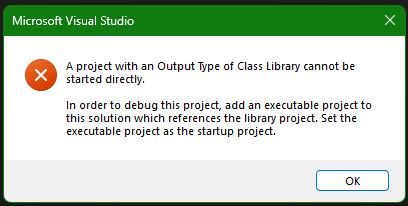
Right... so we have a "doer" but nothing for it to do.
While we do want to get on to NodeJS (and if you wish, you can technically skip straight to that), but since Atalasoft offers dozens of ImageCommand classes, and this is only a simple ResampleCommand, it would probably be useful for you to have a quick way to test out additional commands following the same basic flow...
Skip To NodeJS
Back to Top
A Console App to Test With
Initial Creation
-
In Solution Explorer, Click on the SOLUTION (not the project) and select Add -> New Project
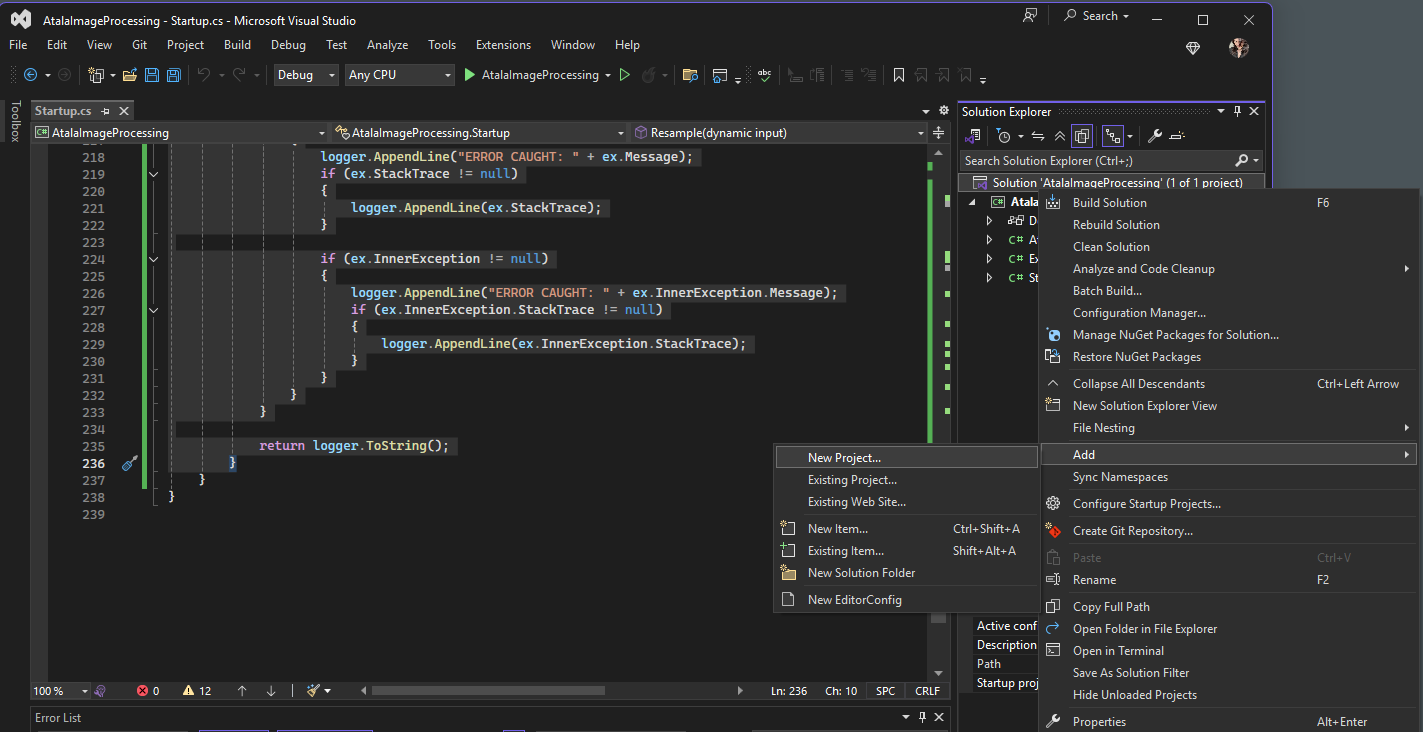
-
On the Add a new project dialog, select c#, Windows, Console
-
Of the two options that come up, select Console App (The one that does NOT end in .NET Framework)
-
Click Next
-
On the Conigure your new project dialog fill in the project name with AtalaImageProcessingTestConsole and click Next
-
On the Additional information dialog use the following options:
- Framework: .NET8.0 (Long Term Support)
- UNCHECK Enable Container Support
- CHECK "Do not use top level statements"
- UNCHECK "Enable native AOT Publish"
-
Click Create
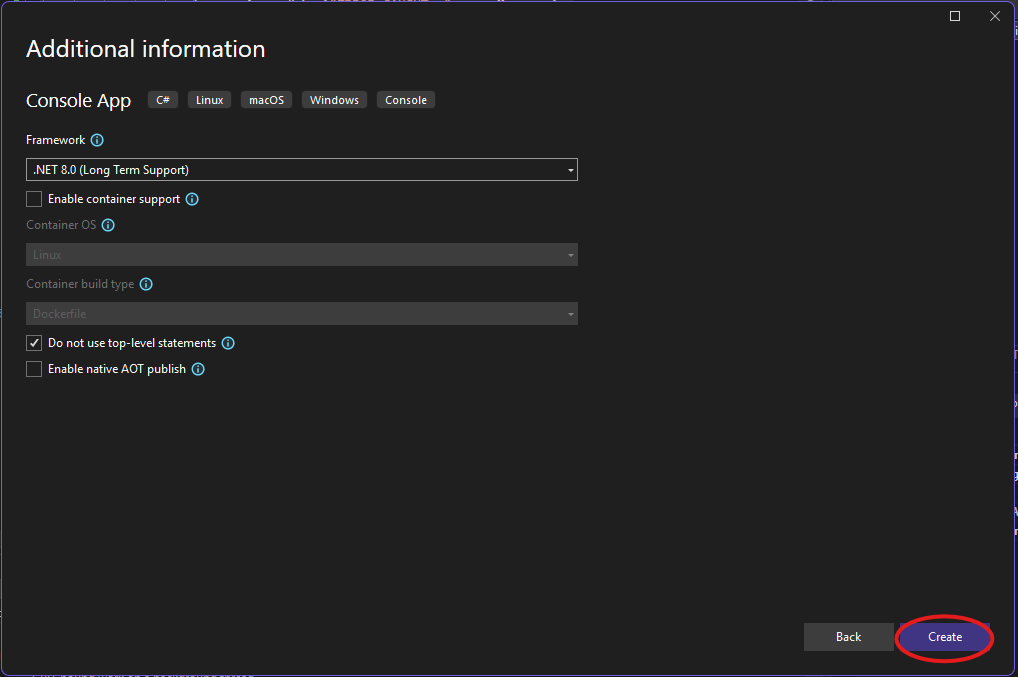
-
In Solution Explorer, Right-Click on the AtalaImageProcessingTestConsole project and select Edit Project File
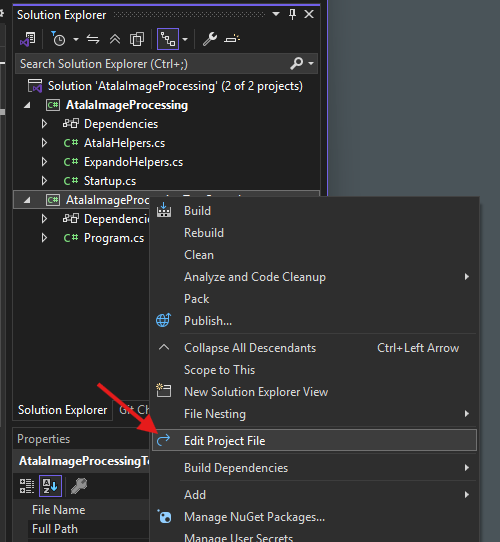
-
Change <TargetFramework>net8.0</TargetFramework> to <TargetFramework>net8.0-windows</TargetFramework>
-
Directly Below that, add <UseWindowsForms>true</UseWindowsForms>
-
Directly below that, add <PlatformTarget>x64</PlatformTarget>
-
It will look like this:
<Project Sdk="Microsoft.NET.Sdk">

  <PropertyGroup>
    <OutputType>Exe</OutputType>
    <TargetFramework>net8.0-windows</TargetFramework>
    <UseWindowsForms>true</UseWindowsForms>
    <PlatformTarget>x64</PlatformTarget>
    <ImplicitUsings>enable</ImplicitUsings>
    <Nullable>enable</Nullable>
  </PropertyGroup>

</Project>
- Save and close the Project File
- In Solution Explorer, Right-Click on the
AtalaImageProcessingTestConsole project and select Set as Startup Project
Back to Top
Adding References
We will be needing some references to Atalasoft as well as needing to reference the Class Library we just created previously.
Project Reference to Class Library
- In Solution Explorer, under the
AtalaImageProcessingTestConsole project, Right-click Dependencies and select Add Project Reference...
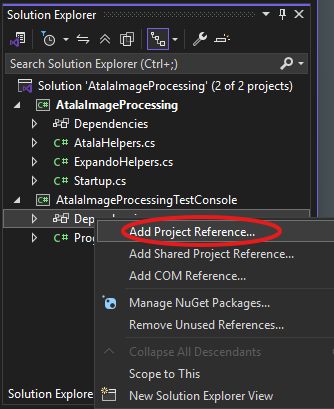
- In the
Reference Manager - AtalaImageProcessingTestConsole dialog, go to Projects->Solutions and CHECK the AtalaImageProcessing class and click OK
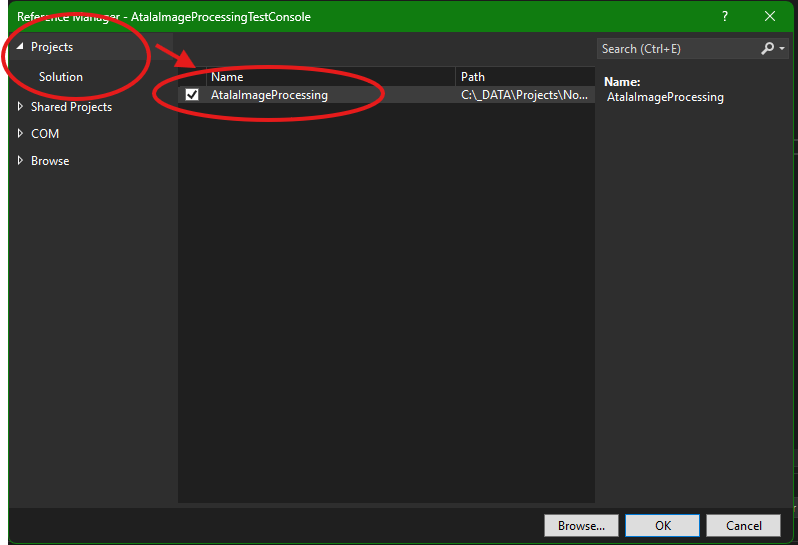
Atalasoft References
- Go back to Solution Explorer, under the
AtalaImageProcessingTestConsole project, Right-click Dependencies and select Add Project Reference...
- This time, In the
Reference Manager - AtalaImageProcessingTestConsole dialog, go to Browse and click the BROWSE button. Then in the browse dialog, use CTRL + Click to select all of the following:
- Atalasoft.dotImage.dll
- Atalasoft.dotImage.Lib.dll
- Atalasoft.Shared.dll
- Then click Add
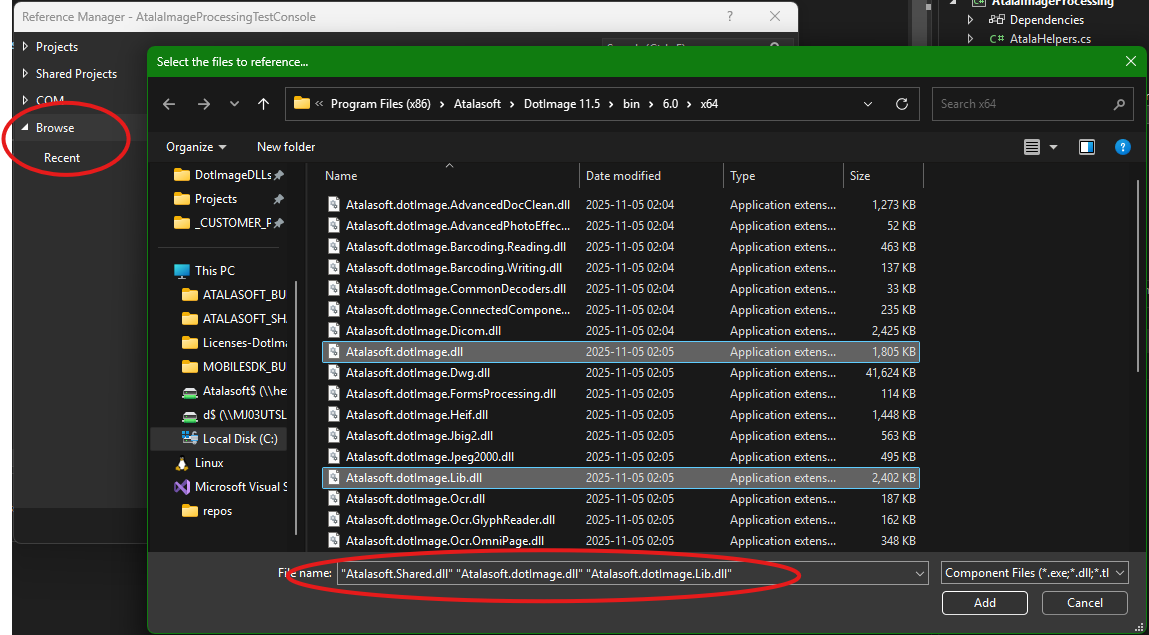
- This takes you back to the
Reference Manager - AtalaImageProcessingTestConsole but now the selected items will be checked and ready for you to his OK.. (which you should do)
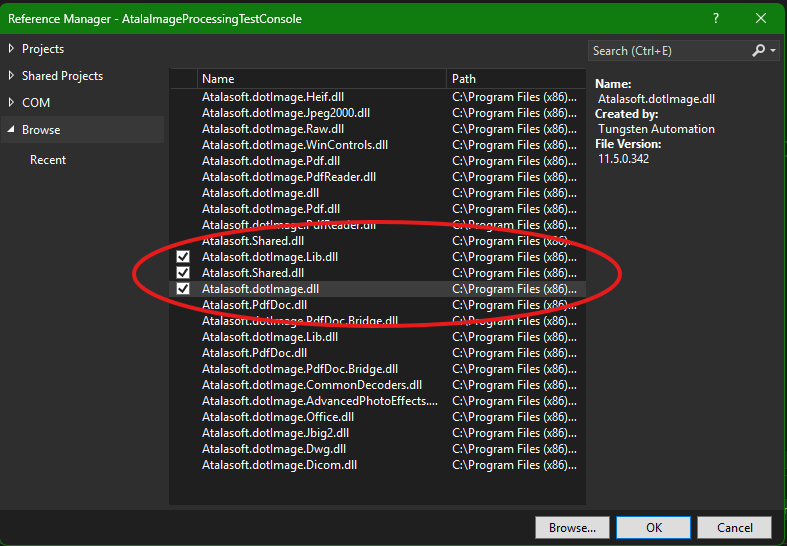
Back to Top
Code for the Console App
This console app is meant as a test harness, so we're going to be putting a LOT of comments in the code that will provide further exposition. (Apologies in advance for the "wall of text" you're about to get.)
- Open Program.cs in your editor if it's not already open
- Replace the main method
static void Main(string[] args)
{
    Console.WriteLine("Hello World!");
}
with this (wall of text):
static void Main(string[] args)
{
    string currentDir = GetWorkingDir();
    Console.WriteLine("currentDir: " + currentDir);
    string sampleImages = Path.Combine(currentDir, "sampleImages");
    Console.WriteLine("sampleImages: " + sampleImages);

    string inFile = Path.Combine(sampleImages, "eric.tif");
    Console.WriteLine("inFile: " + inFile);

    string outFile = Path.Combine(currentDir, "out.png");
    Console.WriteLine("outFile: " + outFile);

    /// Our request needs to be in the format of an ExpandoObject
    /// We need to satisfy the API of the AtalaImageProcessing
    /// For this use case we need the following
    /// inFile (the full path to the input file to be processed)
    /// outFile (the file name of the file we will save to
    ///   if full path provided it will be used
    ///   otherwise it will use the same path as input file
    ///   It will use the .ext  on the outFile to determine
    ///     Which ImageEncoder to use - but will fall back on TiffEncoder
    /// destSize (a new size for the final image
    ///    note we are using our ExmpandoHelpers to convert to expando)
    /// maxSize (an optional field to limit the max size of the image)
    /// sourceRect (an optional System.Drawing.Rectangle defining the
    ///     source size and location to take from
    ///     if left alone it will use the whole image
    /// method (ResampleMethod just getting the name of the method from .ToString() is all we need)
    ///

    // We will make a test object to submit so we can get NodeJS out of the picture while developing
    dynamic resampleRequest = new ExpandoObject();
    resampleRequest.inFile = inFile;
    resampleRequest.outFile = outFile;


    resampleRequest.destSize = AtalaImageProcessing.ExpandoHelpers.ObjToExpando(new Size(300, 500)); ;

    resampleRequest.maxSize = 2550;

    resampleRequest.sourceRect = AtalaImageProcessing.ExpandoHelpers.ObjToExpando(new Rectangle(0, 0, 200, 300));
    resampleRequest.method = ResampleMethod.TriangleFilter.ToString();

    /// Now that we have our resampleRequest ExpandoObject we're ready to set up the resample
    /// NOTE for this sample we're just using it directly
    /// Console app is just calling the command and getting the response to help hyopu debug
    /// In a real app you'd use the Async/Await pattern...
    AtalaImageProcessing.Startup resample = new AtalaImageProcessing.Startup();
    Task<object> task = resample.Resample(resampleRequest);

    // Handle in case we have an error instead of results
    if (task.Exception != null)
    {
        Console.WriteLine("Error running: " + task.Exception.Message);
        if (task.Exception.InnerException != null)
        {
            Console.WriteLine("InnerException: " + task.Exception.InnerException.Message);
            Console.WriteLine(task.Exception.InnerException.StackTrace);
        }

    }
    else if (task.Result != null)
    {
        // If you got here we have results without any exceptions thrown
        // but read the logs to see what it did
        // Again this is just to be able to test commands against your AtalaImageProcessing
        Console.WriteLine(task.Result.ToString());
    }

    Console.WriteLine("Hit ENTER to quit");
    Console.ReadLine();
}


/// <summary>
/// Convenience method to get the root directory of the project - really only useful for debugging
/// </summary>
/// <returns></returns>
private static string GetWorkingDir()
{
    string cwd = System.IO.Directory.GetCurrentDirectory();

    if (cwd.EndsWith("\\bin\\Debug\\net8.0-windows"))
    {
        cwd = cwd.Replace("\\bin\\Debug\\net8.0-windows", "\\..\\..\\");
    }
    if (cwd.EndsWith("\\bin\\Debug\\net8.0"))
    {
        cwd = cwd.Replace("\\bin\\Debug\\net8.0", "\\..\\..\\");
    }
    if (cwd.EndsWith("\\bin\\Debug"))
    {
        cwd = cwd.Replace("\\bin\\Debug", "\\..\\");
    }

    return cwd;
}
Back to Top
Ready to Run
After all of this you should be able to run the console app. Here's what the output looks like on my machine:
currentDir: C:\Projects\DotImageNodeJsDemo\AtalaImageProcessing\AtalaImageProcessingTestConsole\..\..\
sampleImages: C:\Projects\DotImageNodeJsDemo\AtalaImageProcessing\AtalaImageProcessingTestConsole\..\..\sampleImages
inFile: C:\Projects\DotImageNodeJsDemo\AtalaImageProcessing\AtalaImageProcessingTestConsole\..\..\sampleImages\eric.tif
outFile: C:\Projects\DotImageNodeJsDemo\AtalaImageProcessing\AtalaImageProcessingTestConsole\..\..\out.png
checking Input
iput Is IDictionary
  trying inFile...
    inFile parsed...C:\Projects\DotImageNodeJsDemo\AtalaImageProcessing\AtalaImageProcessingTestConsole\..\..\sampleImages\eric.tif
    inFile Exists!
setting FrameIndex
Frame Index not supplied - defaulting to 0
trying outFile...
  outFile parsed...C:\rojects\DotImageNodeJsDemo\AtalaImageProcessing\AtalaImageProcessingTestConsole\..\..\out.png
  outDir parsed...C:\rojects\DotImageNodeJsDemo\AtalaImageProcessing\AtalaImageProcessingTestConsole\..\..
Fixing up outFile if path is not valid
Determining Image Encoder to use
we will be using ouutfile
encoder set to PngEncoder
method
  raw nethodName parsed...TriangleFilter
  Parsing to ResampleMethod
    method:TriangleFilter
destSize
  destSize.width parsed...300
  destSize.height parsed...500
trying sourceRect...
  sourceRect.width parsed...200
  sourceRect.height parsed...300
  sourceRect.x parsed...0
  sourceRect.y parsed...0
trying maxSize...
  maxSize parsed...2550


Ready to Resample...
Loadig source Image eric.tif
  Size: {Width=2504, Height=3229}
  PixelFormat: Pixel24bppBgr
Image loaded - resampling...
  Resample done.
Saving to out.png
  done.
Resample completed

Hit ENTER to quit
Back to Top
Where to go from here
So, you now have a DLL that can run a ResampleCommand, and you have a test harness so you can eventually experiment by providing your own processing calls into the Startup class - try a DynamicThresholdCommand or any other of our dozens of ImageCommand classes
- ApplyPaletteCommand
- AutoCropCommand
- ChangePixelFormatCommand
- Channels.FlattenAlphaCommand
- Channels.ReplaceChannelCommand
- Channels.SetAlphaColorCommand
- Channels.SetAlphaFromMaskCommand
- Channels.SetAlphaValueCommand
- CropCommand
- Document.AutoBorderCropCommand
- Document.AutoDeskewCommand
- Document.BorderRemovalCommand
- Document.DitherCommand
- Document.MarginCropCommand
- Document.OverlayMaskedDocumentCommand
- Document.ResampleDocumentCommand
- Effects.BevelEdgeCommand
- Effects.DropShadowCommand
- Effects.NDGradFilterCommand
- Effects.PhotoColorCorrectCommandBase
- Effects.PhotoColorMagicCommand
- Effects.PhotoColorMultiplyCommand
- Effects.PhotoPortraitCommand
- Effects.PhotoShadowBoostCommand
- Effects.PhotoSkinTonesCommand
- Effects.ReduceColorsCommand
- Effects.RoundedBevelCommand
- Effects.ScribbleCommand
- Effects.TintGrayscaleCommand
- Fft.FftCommand
- Filters.ColorizeCommand
- ImageRegionCommand
- OverlayCommand
- OverlayMaskedCommand
- OverlayMergedCommand
- ResampleColormappedToRgbCommand
- ResampleCommand
- ResampleMaskedCommand
- ThreadedCommand
- Transforms.FlipCommand
- Transforms.PushCommand
- Transforms.QuadrilateralWarpCommand
- Transforms.ResizeCanvasCommand
- Transforms.RotateCommand
- Transforms.SkewCommand
- Transforms.Transform
- Transforms.TransformChainCommand
Or you can sring commands together or really use it to call into any image processing workflow you want to create using Atasoft Dotimage
- Barcode Reading
- Barcode Writing
- Image Processing
- Image format conversions
- Image Resizing (this is what we did here)
- Pdf Document processing (split, combine, reorder, etc..)
- Pdf Fillable forms processing (PdfGeneratedDocument)
- Programmatic PDF generation
Pretty much anything you could ever want to do with DotImage to take advantage of our wide range of classes and APIs.
Truth be told though this article will now focus on calling from NodeJS, you have a pretty robust Class Library you can call from nearly any process that can talk .NET
Back to Top
Did someone mention NodeJS?
Oh, right, so all of this was to get us to calling into Atalasoft (with our resample command in this example) from NodeJS
Back to Top
One Final .NET step...
We need to make one final step related to our .NET project, and that is to publish it to a directory where we will be consuming it from within NodeJS. This is important, because DotImage has several key dependencies that are not included along with the normal build that Visual Studio does when building and running the solution
- Open up a command prompt and CD to the directory containing your Visual Studio solution (example: `C:\Projects\DotImageNodeJsDemo\AtalaImageProcessing)
- run the following command:
dotnet publish -c Release -r win-x64 --self-contained true -o ..\AtalaLib\
- Now on to NodeJS ... really
Back to Top
Preparing the NodeJS Project (Hello Node)
- Keep that command prompt open and cd down into your
DotImageNodeJsDemo folder.
- type in the following command:
code .
- Assuming you have Visual Studio Code (VSCode) running, it will open the folder as a workspace.
- In VSCode, go to
Terminal -> New Terminal
- In the Terminal it opened up, type
npm install edge-js
- In the Explorer, left hand side, click the
New File icon and name the new file app.js
- In app.js lets just write a quick hello:
console.log('Hello Node!');
- if you save that and then in the terminal type
node app.js it should run and output "Hello Node!"
Back to Top
The Node Code
Paste the following code into app.js
console.log('Hello Node!');

console.log('node-atala-edge STARTING');

// Requires
const path = require('path');
const fs = require('fs');

// ========================================
// BEGIN .NET 8 / EDGE-JS config

// THIS is for .NET 8 stuff .. if you want to see the app working as expected
// comment this all out and uncomment the .NET Framework section below
//const atalaNet8Path =  path.join(__dirname, '/AtalaNet8NodeInterop/AtalaNet8NodeInterop/bin/Debug/net8.0-windows/');
const atalaLibPath =  path.join(__dirname, '/AtalaLib/');
process.env.EDGE_USE_CORECLR = 1;

// Set this to 1 if you're having issues loading
process.env.COREHOST_TRACE = 0;
//process.env.EDGE_APP_ROOT = path.join('/AtalaNet8NodeInterop/AtalaNet8NodeInterop/bin/Debug/net8.0-windows/');

var proc = require('edge-js').func({
    assemblyFile: path.join(atalaLibPath, 'AtalaImageProcessing.dll'),
    //typeName: 'Startup', // This is the default for edge-js so we don't need to call it
    methodName: 'Resample' // Func<object,Task<object>>
});
// END.NET 8 / EDGE-JS config
// ========================================


// ========================================
// BEGIN PREPARING THE REQUEST

// inFile must be a full or relative path that the image can be found at
// REQUIRED value
const myInFile = path.join(__dirname, 'sampleImages', 'eric.tif');

// frameIndex of source file - we default to 0 (first frame)
// Error thrown if this value is > number of frames in image
// OPTIONAL value (default to 0)
const myFrameIndex = 0;

// outFile will be either a filename
// or a valid absolute or relative path
// if any path provided it must be valid or it will use the directory of the inFile instead
// If this file has an extension that differs from the inFile the extension will be parsed
// and the file will be encoded to this format
// If no extension is provided, the format of the inFile will be used
// REQUIRED VALUE
const myOutFile = './out_from_NodeJs_call_to_Resample.jpg';

//// BEGIN ResampleCommand-Specific Properties
// Atalasoft ImaeCommand classes have a few standard properties, methods, and events  that
// are inherited from our ImageCommand
// See ImageCommand Class: https://docshield.tungstenautomation.com/AtalasoftDotImage/en_US/11.5.0-8wax4k031j/help/DotImage/html/T_Atalasoft_Imaging_ImageProcessing_ImageCommand.htm

// destSize sets the size in pixels of the final output
// if you set either width or height to 0 it will scale
// keeping the aspect ratio
// if both are set it will force to the new ratio
// REQUIRED VALUE
const myDestSize = { width:600, height: 400 };

// nethod is the ResampleMethod used
// The Default will allow the command to pick what it thinks is best
// see https://docshield.tungstenautomation.com/AtalasoftDotImage/en_US/11.5.0-8wax4k031j/help/DotImage/html/T_Atalasoft_Imaging_ImageProcessing_ResampleMethod.htm
// Default
// NearestNeighbor (note: fastest)
// BiLinear (note: good results when enlarging)
// BiCubic  (Note better quality than BiLinear but slower)
// AreaAverage  (note: exception if used to resize bigger)
// BoxFilter
// TriangleFilter  (note: quite good when you have lots of curves and angles)
// HammingFilter
// GaussianFilter
// BellFilter
// BsplineFilter
// Cubic1Filter
// Cubic2Filter
// LanczosFilter  (note: generally best results for photographic images but slow)
// MitchellFilter
// SincFilter
// HermiteFilter
// HanningFilter
// CatromFilter
// OPTIONAL VALUE - default of Default if not used
const myMethod = "Default";

// Setting this value ensures no matter what calculation
// that neigther height nor width of image will exceed this value in pixels
// Ignored if set to 0
// OPTIONAL VALUE (defaults to 0 which is ignore)
const myMaxSize = 3300;

// If set, the sourceRect defines a "rectangle of interest"
// which is a subsection of the image which will be used as the source
// NOTE that the format is
// { x:0, y:0, width:0, height:0 }
// x is left anchor
// y is top anchor
// width is width in pixels
// height is height in pixels
// Exception will happen if you provide a rect out of bounds
//const mySourceRect = { x:0, y:0, width:100, height:200 };
// OPTIONAL VALUE - ignored if null or Rectangle.empty
//const mySourceRect = null;
const mySourceRect = { x:300, y:500, width:600, height:600 }

// END PREPARING THE REQUEST
// ========================================


// ========================================
// BEGIN CALLING THE LIBRARY

// We need to format the command as a Javascript Map with the desired values
let imgCommand = { inFile: myInFile, frameIndex: myFrameIndex, outFile: myOutFile, destSize: myDestSize, method: myMethod,  maxSize: myMaxSize, sourceRect: mySourceRect  };
proc(imgCommand, function (error, result) {
    console.log("error: " + error);
    console.log("result:" + result);
 });
// END CALLING THE LIBRARY
// ========================================


console.log('node-atala-edge DONE');
- save the file
- now, in terminal type
node app.js
- You should see the following output if you were successful
Hello Node!
node-atala-edge STARTING
error: null
result:checking Input
iput Is IDictionary
  trying inFile...
    inFile parsed...C:\Projects\NodeJS\DotImageNodeJsDemo\sampleImages\eric.tif
    inFile Exists!
setting FrameIndex
  frameIndex parsed...0
trying outFile...
  outFile parsed..../out_from_NodeJs_call_o_Resample.jpg
  outDir parsed....
Fixing up outFile if path is not valid
Determining Image Encoder to use
we will be using ouutfile
encoder set to JpegEncoder
method
  raw nethodName parsed...Default
  Parsing to ResampleMethod
    method:Default
destSize
  destSize.width parsed...600
  destSize.height parsed...400
trying sourceRect...
  sourceRect.width parsed...600
  sourceRect.height parsed...600
  sourceRect.x parsed...300
  sourceRect.y parsed...500
trying maxSize...
  maxSize parsed...3300


Ready to Resample...
Loadig source Image eric.tif
  Size: {Width=2504, Height=3229}
  PixelFormat: Pixel24bppBgr
Image loaded - resampling...
  Resample done.
Saving to out_from_NodeJs_call_to_Resample.jpg
  done.
Resample completed

node-atala-edge DONE
PS C:\Projects\NodeJS\DotImageNodeJsDemo>
You can open the out_from_NodeJs_call_to_Resample.jpg file right in VSCode and see that it was resampled from the source rectangle
From here you can play with the input settings for ResampleCommand
Or maybe write a wrapper for another ImageCommand such as GlobalThresholdCommand (to convert a color image to true Bitonal black and white (1 bit per pixel))
You can check out our DotImage Demo and see all the different image commands DotImage can do - with a little bit of code, you can get any one of them or even a series of them (see CompositeCommand Demo) to operate on a given input file.
Perhaps you could expand out and instead of image processing with ImageCommand you could use our PdfDocument class to combine or separate PDFs.
The sky is the limit.
Happy Coding
Back to Top
Downloads
Coming soon: downloadable reference projects
Last Update
2026-10-21 - TD - (Updated links to other demos)