Table of Contents
IMPORTANT NOTE REGARDING OLDER .NET
Atalasoft removed support for .NET 9 and older in 2026.2. If you require .NET 8, please see INFO: WDV (and WebCapture) In .NET 8 Whitepaper - Getting Started
Also note that you can use DotImage 10.5 to target .NET 10 if you like, so long as you use at least 11.5.0.7 (FixPack 7) or newer.
Back to Top
RETIRED VERSIONS and THIS ARTICLE
This article was originally written for the first appearance of our .NET 5 DLLs in 11.4. As of April 2025, it's being updated to use the current version 2026.2.1. The minimum supported .NET for 2026.2 is 10. For 11.5 the minimum is .NET 6 (long out of support from MS) and so long as you use FixPack 7 or newer, you can target .NET 10
DotImage 2026.2 targets .NET 10.0 (our DLLs are built for .NET 10) and in theory, will work with future releases (.NET 11 and up) as they become available. Future releases will be updated to support the current LTS versions of .NET
DotImage 11.4 shipped with .NET 5.0 DLLs which worked (and do work with) .NET 5 / 6 / 7 / 8, However, we do not recommend using < 11.5.0.7.
Back to Top
SEE ALSO
Before we get started, it's important to note that this document is focusing only on the aspects of getting started with WDV in the context of ASP.NET Core web applications. We will discuss the differences between WDV / WDT in ASP.NET Core and standard ASP.NET, but we won't go into strenuous details about WDV and some of the more advanced things you can do with it.
This is because there is very little functional difference between WDV/WDT in ASP.NET Core versus ASP.NET. Herein we hope to give you the fundamentals you need to operate within the ASP.NET Core paradigm, and give you the tools to understand how to hook into the server side events and add server side code, but once you understand how to hook in / the analogy to what we call the "handler" in the ASP.NET version, Any of the implementation details are pretty much the same.
All of this means that you may want to have a look at our related papers/articles:
Back to Top
GETTING STARTED
When creating a new application using the WebDocumentViewer, there are a few steps you will need in order to get the project up and running.
We will use this document to discuss the requirements of using the WebDocumentViewer within the context of an ASP.NET Core web application targeting the .NET framework, and then walk through its creation, step by step.
Back to Top
TECHNICAL REQUIREMENTS
.NET 10
It is important to note that as of this article rewrite in June 2026, .NET 10 is the minimum supported by DotImage 2026.2, and this article is being retooled for .NET 10 using the current 2026.2. For 11.5 targeting .NET 8, please see INFO: WDV (and WebCapture) In .NET 8 Whitepaper - Getting Started
Back to Top
This document and our SDK assume that you're a developer familiar with basic use of Visual Studio, IIS Express or IIS, and general web application development practices using MS Visual Studio 2026 or later. The samples will be using an HTML 5 approach in an "Empty" (Minimal) ASP .NET Core web application targeting.NET Core 6.0 targeting 64 bit application pool and using Visual Studio's built in IIS Express web server.
To ensure you're using the x64 version of IISExpress, in Visual Studio, go to Tools -> Options and then in the options menu, navigate to Projects and Solutions -> Web Projects and ensure the "Use the 64 bit version of IIS Express for web sites and projects" option is checked.
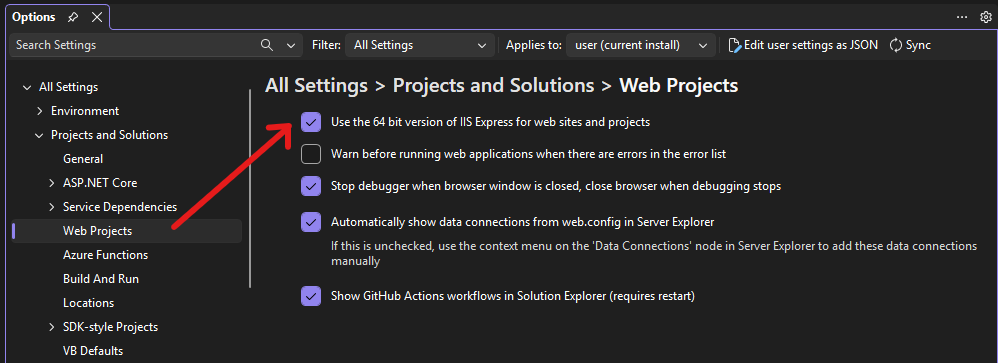
NOTE: There is no major difference in using our control in MVC vs non-MVC apps - the only practical differences are that MVC likes to put scripts and css in specific locations and uses a slightly different means of interpolating paths in includes. All of this information should be able to be applied in an MVC app - just make sure you put all the markup on a single ASPX view
We will be providing examples in C#. Our SDK works with VB.NET as well, but for the sake of simplicity any .NET code will be provided in C#. You can use a converter tool such as Telerik Code converter to convert examples to VB.NET.
The WebDocumentViewer also requires jQuery, jQueryUI, and Raphael
Our SDK ships with the minimum version of all required libraries.. our .NET10 sample here is going to make use of our published packages. It IS possible to update to newer versions if you like.. but whatever you choose, you should be aware of the MINIMUM required.
On installing our SDK, the scripts will be delivered to they are placed in:
C:\Program Files (x86)\Atalasoft\DotImage 2026.2\bin\WebResources\WebDocViewer
As of 2026.2.0, these are:
- jquery-3.5.1.min.js
- jquery-ui-1.14.0.min.js
- raphael-min.js
- clipboard.min.js
- atalaWebDocumentViewer.js
- atalaWebDocumentViewer.d.ts
- jquery-ui-1.14.0.min.css
- atalaWebDocumentViewer.css
Back to Top
SDK Requirements / Versions
A brief set of instructions for downloading our SDK and activating a license will be given, but the rest of the document assumes you've installed the latest DotImage SDK (currently 2026.2.1 as of June, 2026)
We do not currently provide access for our ASP.NET Core web components directly in the SDK install, so this tutorial will be using our NuGet packages.
If you're a licensed developer, or are actively evaluating our SDK and run into problems/questions, you are welcome to contact support. You can make a support case in writing at our support portal. You may also call in to support during our normal business hours Support Hours: M - F from 8AM - 5PM EDT (New York Time)
Call us: +1 (949) 236-6510
Back to Top
STANDARD TROUBLESHOOTING
Web applications with WebDocumentViewer / WebDocumentThumbnailer have a lot of "moving parts" and troubleshooting can seem a daunting task.
There is a free third party tool that can greatly enhance troubleshooting and assist you in reporting issues to support
If you are having issues with WebDocumentViewer, problems related to the web components are best diagnosed by looking at a log of the network traffic. Most commonly a faulting application will clearly show a 500 internal server error being thrown and the full response body of that error will offer a great deal of insight into the root cause (licensing issues, and errors in the WebDocumentRequestHandler will most often show up in the 500 error response body)
We recommend Fiddler if you need to collect a log and report it to support.
Please download, install, and run Fiddler web logging
Use it to collect a log while you reproduce the issue, then save the log as a native .saz file and and attach it to your support case as a file attachment/ (please do not save as CSV or text log. The native SAZ file gives us much better access to the tools we need to help diagnose your issue)
PLEASE NOTE: you need to capture a session while NOT using SSL/HTTPS. Fiddler logs cannot see into HTTPS without enabling a special certificate which we do not recommend.. if your capture is of an HTTPS session we will not get useful diagnostic information from the log
Back to Top
INSTALLATION AND LICENSING
You may have already installed our SDK from the download site latest version of Atalasoft DotImage SDK, and activated a paid or eval license. If so that's fine. The licensing can be done using our licensing component NuGet package...
NOTE: The current version is 2026.2.1 as of June 2026. updates of the SDK happen with regularity. We work hard not to make breaking changes so this guide should be compatible with future releases. We will update the specific technical details as needed as changes arise
If you have not done so, please log in or create an account with Atalasoft so that you can activate our SDK.
Please note: If any of the screenshots show .NET 8 or VS 2022, its because generating the updated ones takes time - we want to get the written howto updated first then we can go back and handle the screenshots. Please use .NET 10, and VS2026 for this project.
If you run into issues you can use the standalone activation wiz mentioned in the following KB: HOWTO: Activate DotImage SDK or Server (Including Offline Activation)
- In Visual Studio 2026, go to Extensions->Manage Extensions
- Select the Browse option
- In the search box, type "Atalasoft"
- Select Atalasoft DotImage Activation Wizard for VS2022 and click Install
NOTE: the installer has not been updated for VS2026 but should still work
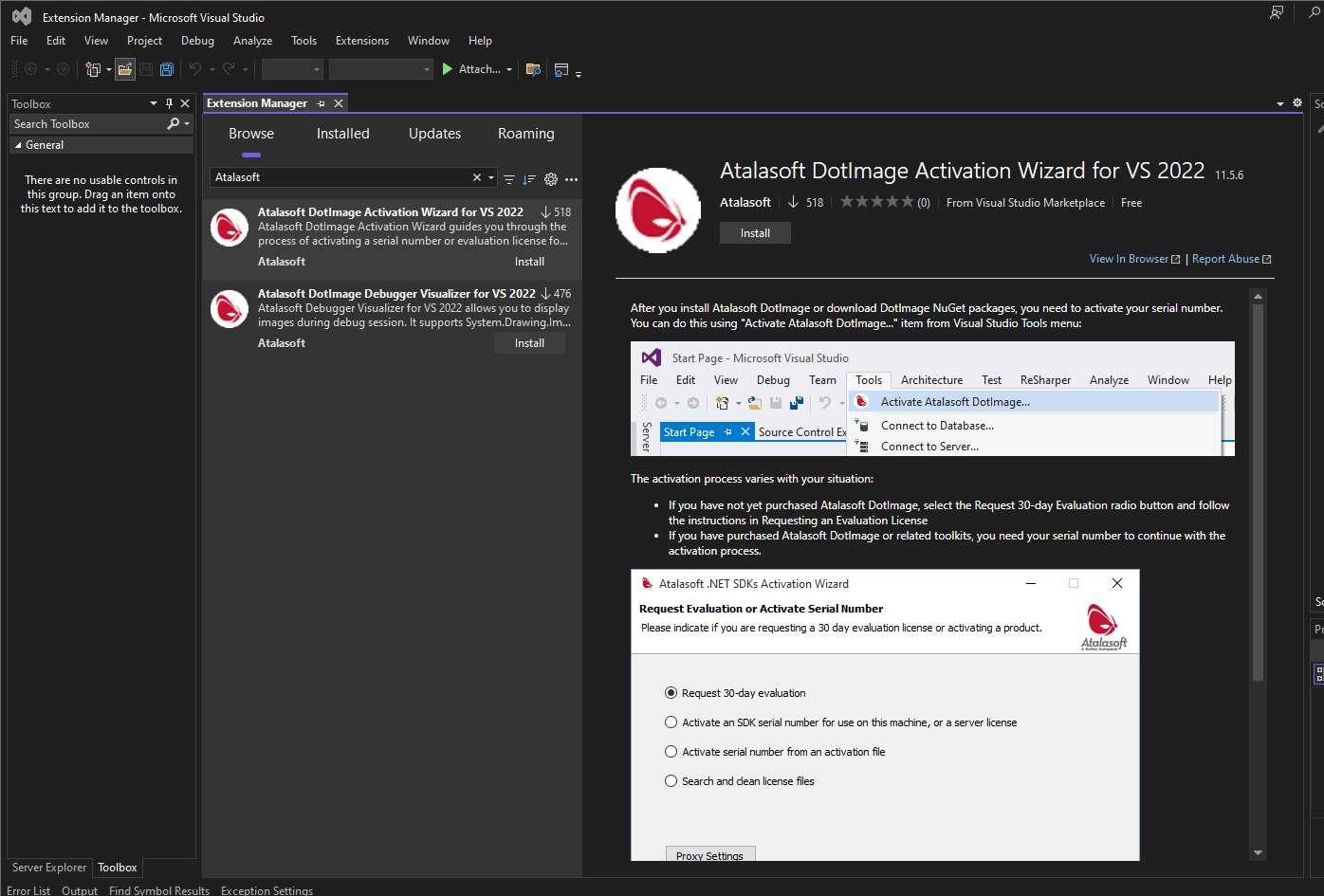
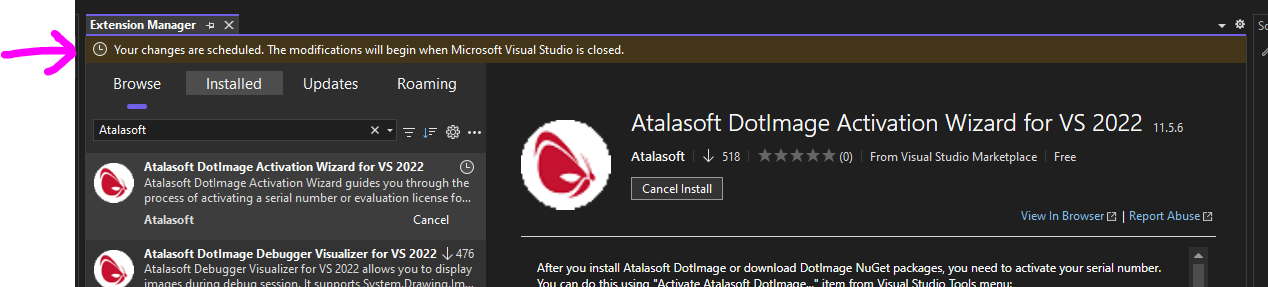
- Once you click install, Visual Studio tells you it needs to install on close
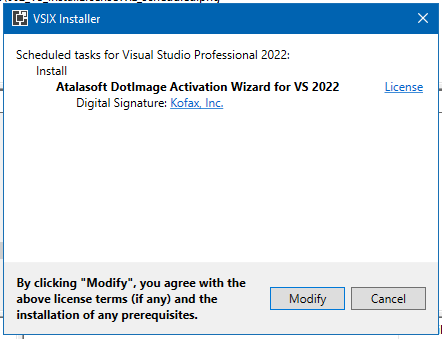
- Close Visual Studio and look for the VISIX installer dialog.
- You will need to click the "Modify" button for it to proceed
- This may take a little time but eventually, it will prompt that the installation is done.
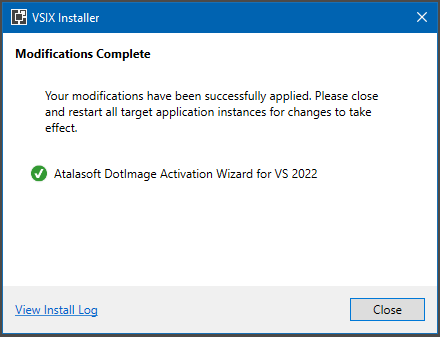
-
There should now be an "Activate DotImage" option under your Tools option in Visual Studio...
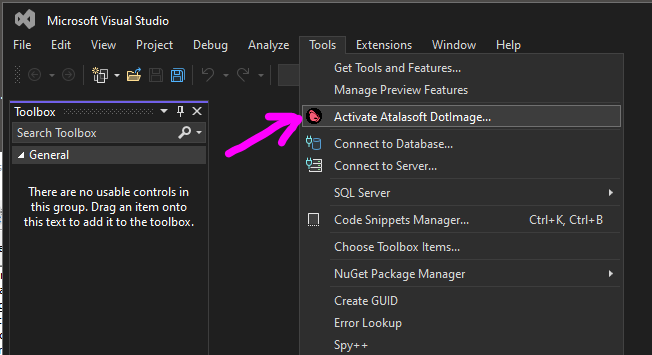
-
If you have SDK serials for DotImage and/or WingScan use the "Activate an SDK serial for use on this machine or a server license" option and activate your serials for version 11.5
-
If you do not yet have licenses, you can select the "request 30 day evaluation"
-
If you run into issues activating or require assistance, please contact support
NOTE for IIS users: The licensing above should be sufficient if you're using the built in web server in Visual Studio (IIS Express.. which this document assumes you are doing) but if you are using a local copy of IIS, then the IIS process does not run as your user name so it will not pick up your licenses. You'll need to take the extra step of copying your licenses into the application bin directory.
Assuming you have an app named WdvDotNet10 hosted in IIS under:
c:\inetpub\wwwroot\WdvDotNet10\
Then you'd copy your licenses from:
C:\users\YOUR_USERNAME\AppData\Local\Atalasoft\DotImage 2026.2\
to
c:\inetpub\wwwroot\WdvDotNet10\bin\
Back to Top
EXAMPLE 1
BUILDING A MINIMAL WEB VIEWING APP
We're going to be creating a very minimal WebDocumentViewer (WDV) based application which will also make use of our WebDocumentThumbnailer (WDT).
While this may seem not too useful, it's the fundamental minimum you need to get the WDV running with ASP.NET Core. Don't worry, you can easily get more fancy (we have other documents and whitepapers that go into more advanced use cases), but this tutorial will give you the basic hooks to see how to get it running. For now, we're going to start with the basics.
The first step assumes you've licensed yourself as instructed above or by installing the SDK and running the license wizard to either request a 30 day evaluation or activate paid license for DotImage Document Imaging.
We will be using Visual Studio 2026. You can use later versions of Visual Studio (as available), however for the purpose of this project, 2026 is the platform we will be following. From there, you will create a new Empty ASP.NET Core Project. Lets also target .NET 10 as our target framework, since it is the minimum version that this particular use case can support.
Back to Top
Starting the Project
Please note that we are going through a specific minimal use case here. The choices made in the tutorial represent as "light a touch" as possible. For instance, please avoid the temptation to select "ASP.NET Core Web App (Model-View-Controller) or other. Once you've followed the tutorial successfully and "have a feel for the SDK and our .NET 8" then by all means, adapt it to your needs / redo but with MVC etc.
- Open Visual Studio 2026
- Create a new ASP.NET Core Empty project
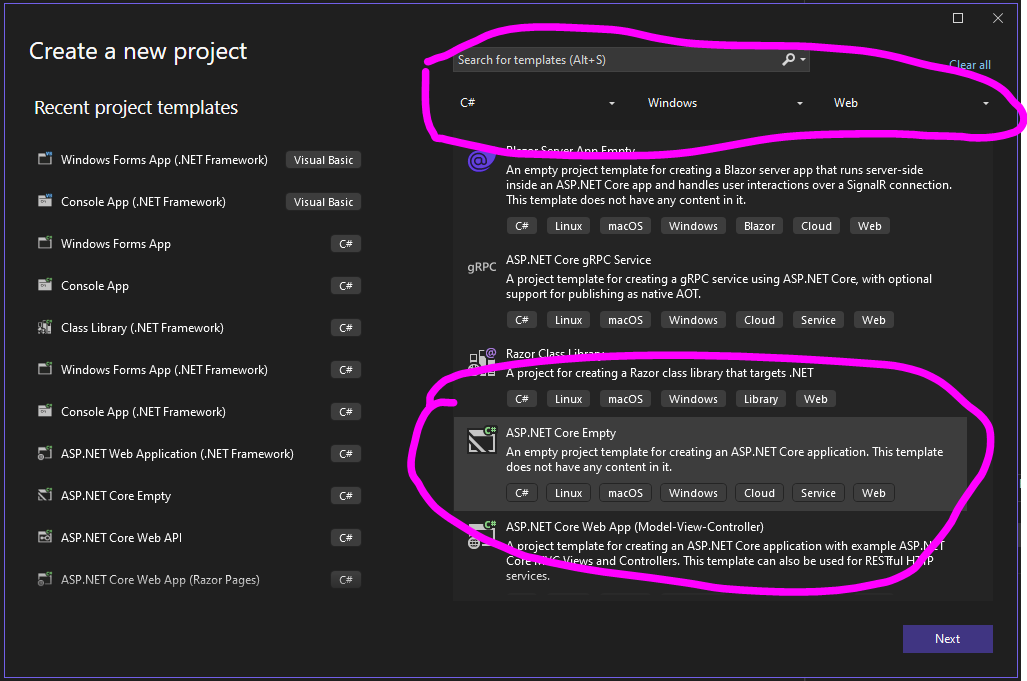
- Name the project/solution WdvDotNet10
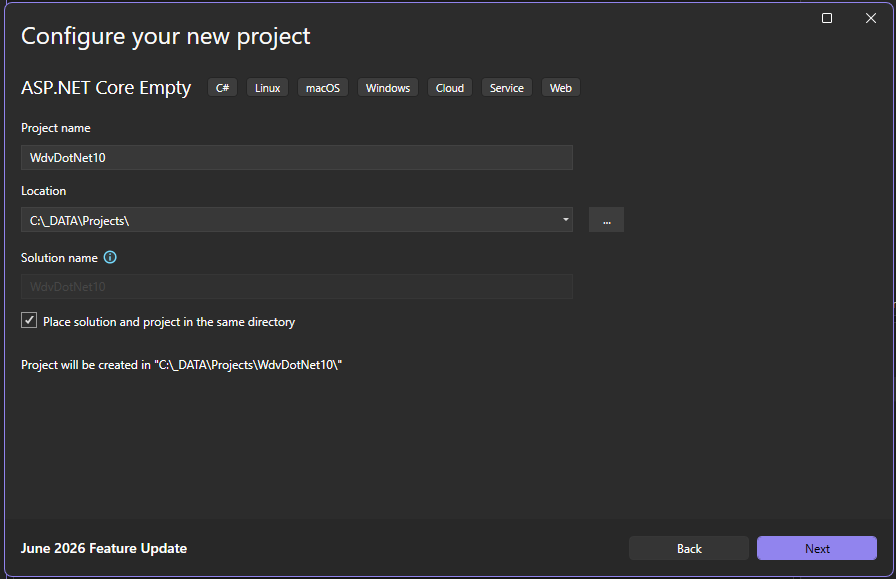
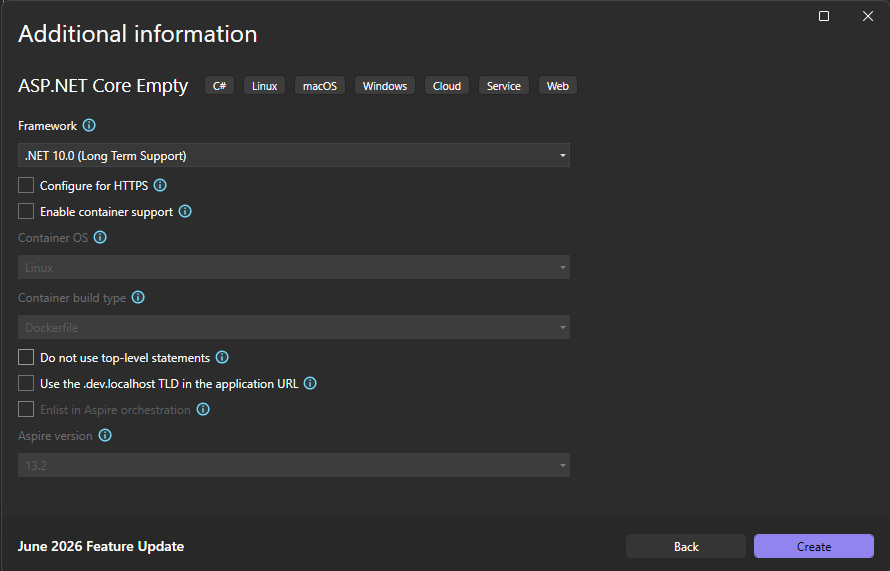
- On the Additional Information dialog, be sure to select .NET 10.0 (Long term support) for your framework. You can choose to Configure for HTTPS or not. NOTE: if you wish to enable Docker you MUST choose windows Linux is not supported)
- It is recommended you uncheck "Do not use top-level statements" just so that your project will look like ours when done
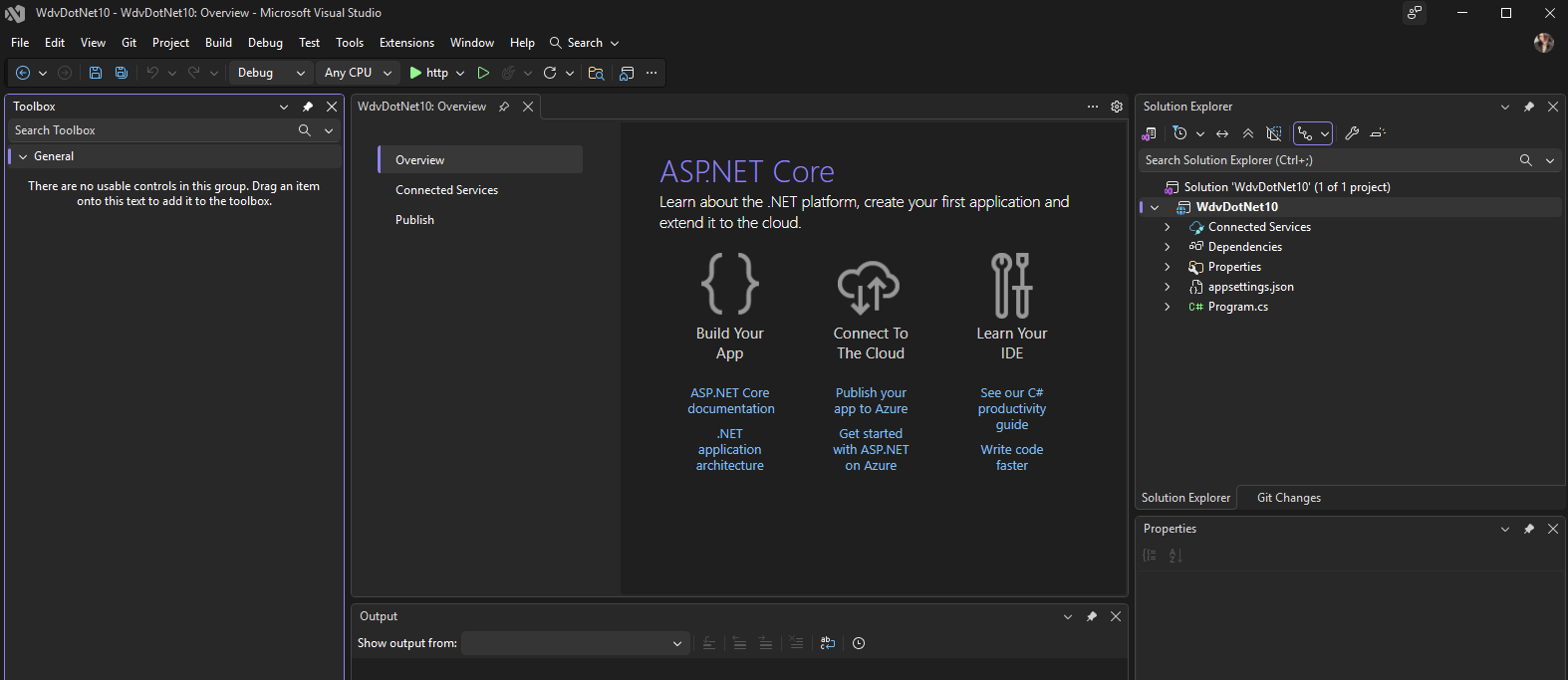
- Now you have your empty starting project
Back to Top
Prerequisites (NuGet Packages)
- Now, we need to add the relevant NuGet packages for WDV and our Atalasoft references
- Go to Tools -> NuGet Package Manager -> Package Manager Console
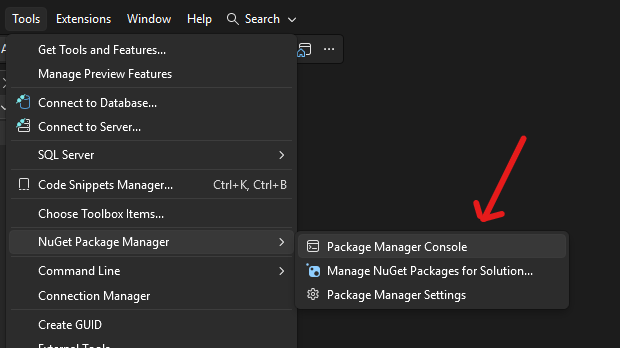
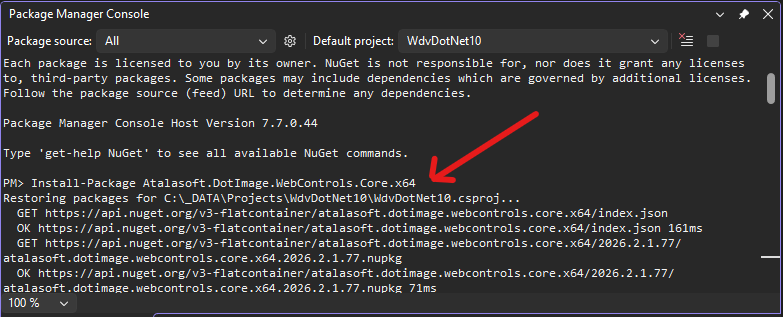
- at the PM> prompt type in the following and hit enter:
Install-Package Atalasoft.DotImage.WebControls.Core.x64
Back to Top
Prerequisites (Additional Configuration)
This is also different from .NET Framework .. We must directly edit the project file to add a needed config option
- Hit your Save All button on your solution
- right click on the project (WdvDotNet10) in solution explorer and select Unload Project:
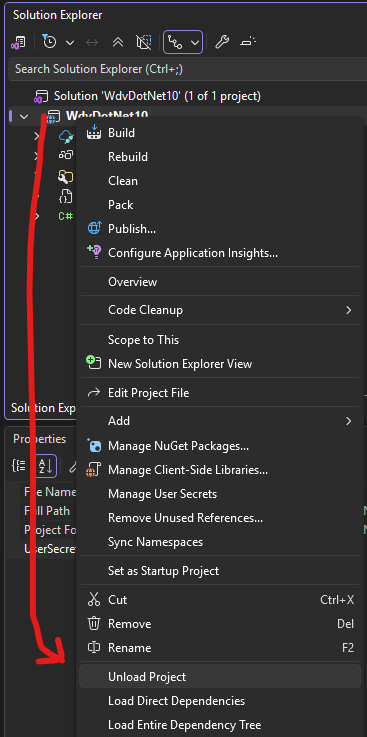
- Now right click on the unloaded project (WdvDotNet6 (unloaded)) and select Edit Project File
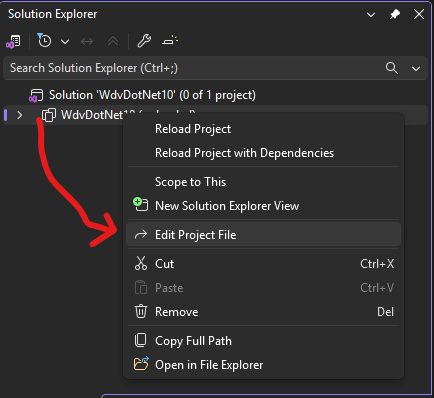
- Find the Property Group and change
    <TargetFramework>net10.0</TargetFramework>
to
    <TargetFramework>net10.0-windows</TargetFramework>
- under that, add
UseWindowsForms true
<UseWindowsForms>true</UseWindowsForms>
- Your project file should look something like this:
    <Project Sdk="Microsoft.NET.Sdk.Web">

      <PropertyGroup>
        <TargetFramework>net10.0-windows</TargetFramework>
        <UseWindowsForms>true</UseWindowsForms>
        <Nullable>enable</Nullable>
        <ImplicitUsings>enable</ImplicitUsings>
      </PropertyGroup>

      <ItemGroup>
        <PackageReference Include="Atalasoft.DotImage.WebControls.Core.x64" Version="2026.2.1.77" />
      </ItemGroup>

    </Project>
- Save and close that and then right click on the (WdvDotNet10) project and select Reload Project
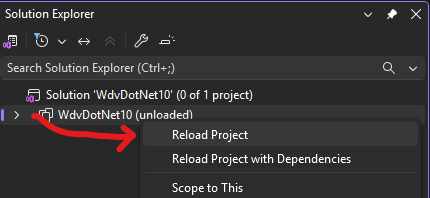
Back to Top
Prerequisites (wwwroot folder)
This part is due to us starting with an empty project.. we need the wwwroot folder
- In solution explorer right click on the project (WdvDotNet10) and create a new folder and name it "wwwroot" exactly
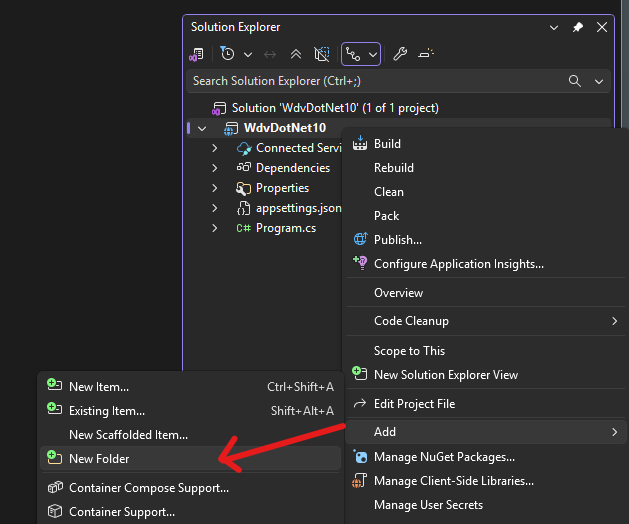
Note how it gets a special icon - this is a special folder and must be named exactly wwwroot
Back to Top
Prerequisites (Clientside Dependencies)
Manual Installation
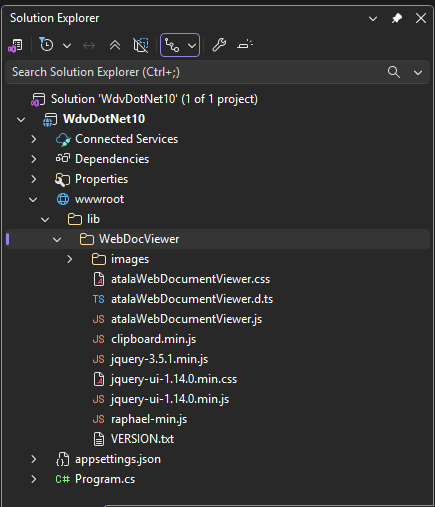
- You need the Clientside Resources.
- If you have installed the SDK on your development machine, you can find them in C:\Program Files (x86)\Atalasoft\DotImage 2026.2\bin\WebResources\WebDocViewer
- Using Windows Explorer, navigate to the directory containing the resource
- COPY the WebDocViewer directory in its entirety to the wwwroot/lib location in your solution. We strongly recommend doing this from Windows Explorer (source) to Visual Studio Solution Explorer (destination) so that the files are ADDED to your project
- NOTE: you may need to hold the CTRL key when dragging/dropping to enable copy
- When complete, your Solution Explorer will look something like this:
- Skip to the next step: Prerequisites (Other Required Files)
Back to Top
Prerequisites (Other Required Files)
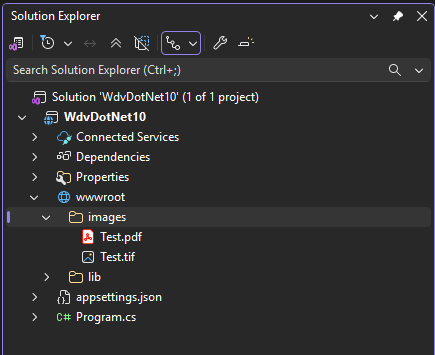
We need to add the sample images we will be reading from
- Download AtalaWebDemos SampleImages
- Unzip this file to a known location
- Using Windows Explorer, navigate to the now unzipped AtalaWebDemos_SampleImages directory
- COPY the images directory in its entirety to the wwwroot location in your solution. We strongly recommend doing this from Windows Explorer (source) to Visual Studio Solution Explorer (destination) so that the files are ADDED to your project
- When complete, your Solution Explorer will look something like this:
Back to Top
Prerequisites (WDV Callbacks class)
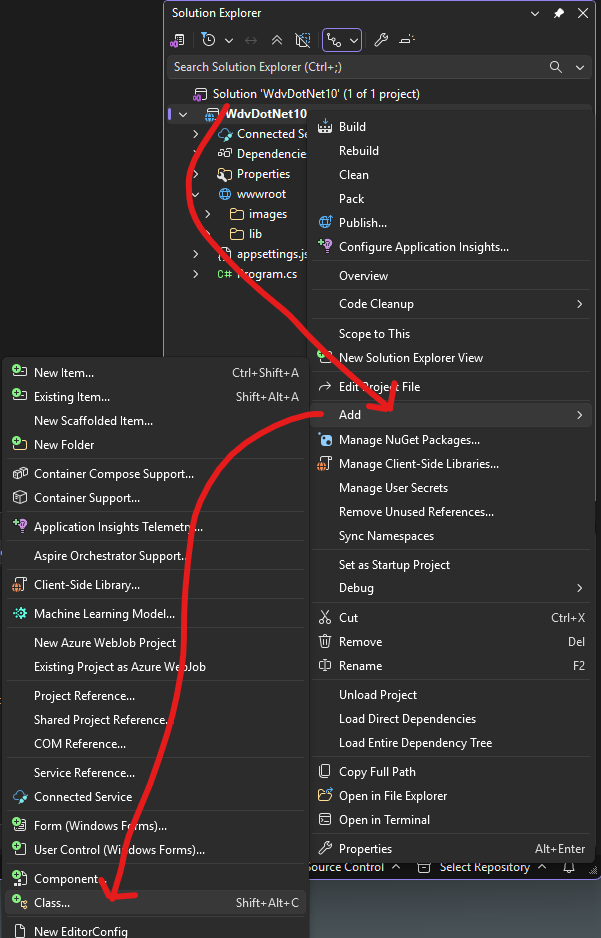
We need to set up a callback handler for the server side code for WDV. To do this, we add a new class named MyWdvCallbacks
-
Right click on the (wdvDotNet10) project and Add --> Class
-
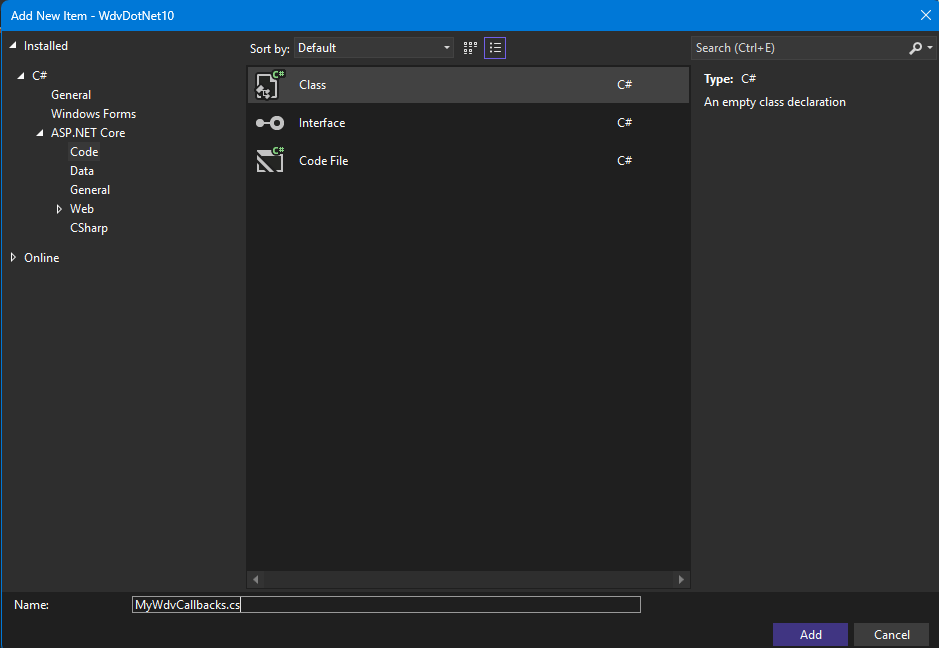
Name it MyWdvCallbacks.cs
-
Go to the new MyWdvCallbacks.cs class code and it will look like this:
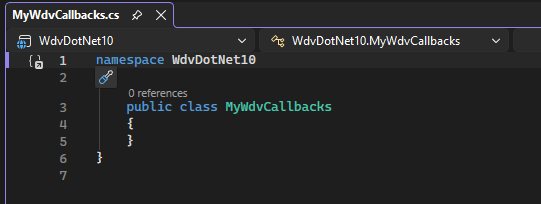
-
Modify it to add the following at the top:
    using Atalasoft.Imaging.WebControls;
    using Atalasoft.Imaging.WebControls.Core;
- Next, modify the Public class
MydvCallbacks to inherit from WebDocumentViewerCallbacks
    public class MyWdvCallbacks: WebDocumentViewerCallbacks
    {
    }
- Now, inside the public class
MyWdvCallbacks: WebDocumentViewerCallbacks { cloture add:
            /// IMPORTANT: make sure you fully disable File Upload if you're not using it by adding this handler
            public override void FileUpload(FileUploadEventArgs args)
            {
                args.Cancel = true;
                base.FileUpload(args);
            }
            public override void DocumentInfoRequested(DocumentInfoRequestedEventArgs args)
            {
                Console.WriteLine("**********===DocumentInfoRequested===**********");
                base.DocumentInfoRequested(args);
            }
            public override void ImageRequested(ImageRequestedEventArgs args)
            {
                Console.WriteLine("**********===ImageRequested===**********");
                base.ImageRequested(args);
            }
            /*
             * The above was just an example of hooking to the two main events.. you can handle any exposed event here
             *
             * //.. most common ...
             *  AnnotationDataRequested
             *  DocumentSave
             *  DocumentStreamWritten
             *  AnnotationStreamWritten
             *  //.. less common .
             *  PageTextRequested
             *  PdfFormRequested
             *  //.. rarely if ever used ..
             *  ReleaseDocumentStream
             *  ReleasePageStream
             *  ResolveDocumentUri
             *  ResolvePageUri
             */
- The final
MyWdvCallbacks.cs file will look like this:
    using Atalasoft.Imaging.WebControls;
    using Atalasoft.Imaging.WebControls.Core;

    namespace WdvDotNet10
    {
        public class MyWdvCallbacks : WebDocumentViewerCallbacks
        {
            /// IMPORTANT: make sure you fully disable File Upload if you're not using it by adding this handler
            public override void FileUpload(FileUploadEventArgs args)
            {
                args.Cancel = true;
                base.FileUpload(args);
            }
            public override void DocumentInfoRequested(DocumentInfoRequestedEventArgs args)
            {
                Console.WriteLine("**********===DocumentInfoRequested===**********");
                base.DocumentInfoRequested(args);
            }
            public override void ImageRequested(ImageRequestedEventArgs args)
            {
                Console.WriteLine("**********===ImageRequested===**********");
                base.ImageRequested(args);
            }
            /*
             * The above was just an example of hooking to the two main events.. you can handle any exposed event here
             *
             * //.. most common ...
             *  AnnotationDataRequested
             *  DocumentSave
             *  DocumentStreamWritten
             *  AnnotationStreamWritten
             *  //.. less common .
             *  PageTextRequested
             *  PdfFormRequested
             *  //.. rarely if ever used ..
             *  ReleaseDocumentStream
             *  ReleasePageStream
             *  ResolveDocumentUri
             *  ResolvePageUri
             */
        }
    }
Back to Top
Program.cs Modifications
In previous ASP.NET Core, there was a startup.cs file that was used for "middleware". In .NET 8 , this is done in the program.cs instead.
The site created by Empty ASP .NET Core app template .NET 10 app uses the new minimal hosting model (only one Program.cs file is present in the project, Startup.cs file is absent). But at the same time, this is not a necessary condition and it is possible to use the same files as for previous versions of ASP .NET Core (see Use Startup with the new minimal hosting model). If, after all, a new approach is used, the combined Program.cs file for WDV app will look like:
-
The original program.cs from the blank project will look like this:
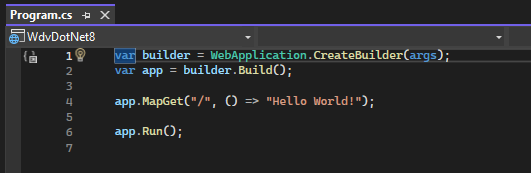
-
Before the line var builder = WebApplication.CreateBuilder(args);, add the following:
    using Atalasoft.Imaging.Codec;
    using Atalasoft.Imaging.Codec.Pdf;
    using Atalasoft.Imaging.WebControls.Core;

    RegisteredDecoders.Decoders.Add(new PdfDecoder() { Resolution = 200, RenderSettings = new RenderSettings() { AnnotationSettings = AnnotationRenderSettings.RenderNone } });
- Now, delete or comment out this line:
app.MapGet("/", () => "Hello World!");
and replace it with
    app.UseDefaultFiles();
    app.UseStaticFiles();

    app.Map("/wdv", wdvApp => { wdvApp.RunWebDocumentViewerMiddleware(new WdvDotNet10.MyWdvCallbacks()); });
- Your
Program.cs file will now look like this:
    using Atalasoft.Imaging.Codec;
    using Atalasoft.Imaging.Codec.Pdf;
    using Atalasoft.Imaging.WebControls.Core;

    RegisteredDecoders.Decoders.Add(new PdfDecoder() { Resolution = 200, RenderSettings = new RenderSettings() { AnnotationSettings = AnnotationRenderSettings.RenderNone } });

    var builder = WebApplication.CreateBuilder(args);
    var app = builder.Build();

    app.UseDefaultFiles();
    app.UseStaticFiles();

    app.Map("/wdv", wdvApp => { wdvApp.RunWebDocumentViewerMiddleware(new WdvDotNet10.MyWdvCallbacks()); });

    app.Run();
Back to Top
Last Step: Client-side scripts and Markup
The setup for web document viewing just requires placing some JavaScript, CSS, and HTML into your page.
- Create a new index.html page which will host your web controls:
- Right click on the wwwroot section of the project in Solution explorer and choose Add New
- select HTML Page and name it "index.html" and click Add
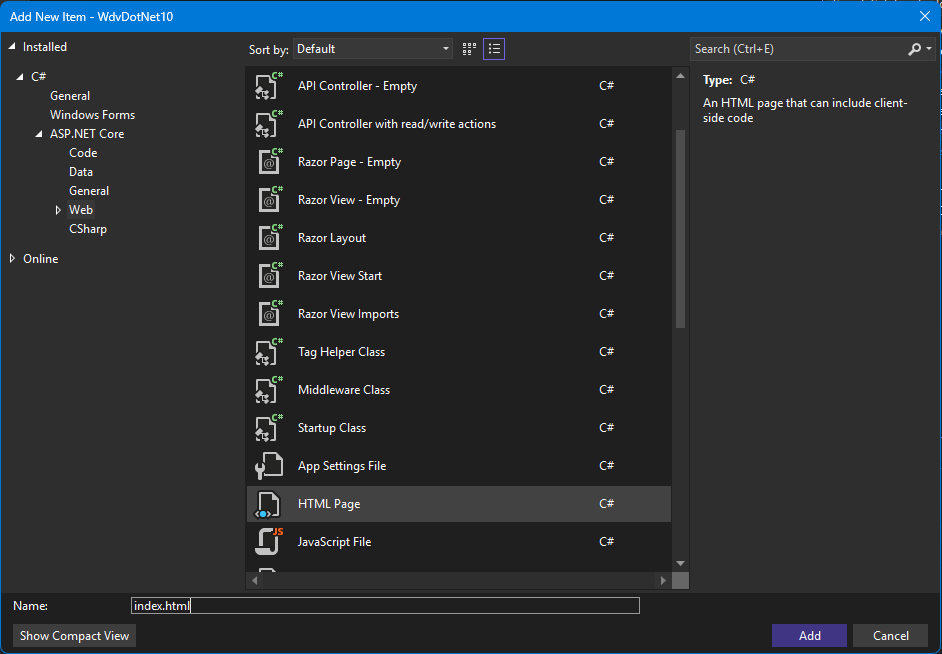
- Edit the new index.html file
- The default head section looks like this:
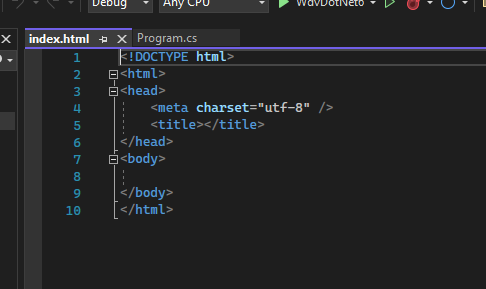
- Add in the following script block after the title tags:
            <!-- Scripts for Web Viewing -->
            <script src="lib/WebDocViewer/jquery-3.5.1.min.js" type="text/javascript"></script>
            <script src="lib/WebDocViewer/Jquery-ui-1.14.0.min.js" type="text/javascript"></script>
            <script src="lib/WebDocViewer/raphael-min.js"></script>
            <script src="lib/WebDocViewer/clipboard.min.js"></script>
            <script src="lib/WebDocViewer/atalaWebDocumentViewer.js" type="text/javascript"></script>
            <!-- Style for Web Viewer -->
            <link href="lib/WebDocViewer/jquery-ui-1.14.0.min.css" rel="stylesheet" />
            <link href="lib/WebDocViewer/atalaWebDocumentViewer.css" rel="stylesheet" />
- Now, we also need to add the JavaScript that will initialize and configure the main WDV and WDT viewers.
            <script type="text/javascript">
                var _viewer;
                var _thumbs;
                // Initialize Web Viewing
                $(function () {
                    try {
                        // Initialize Web Document Viewer
                        _viewer = new Atalasoft.Controls.WebDocumentViewer({
                            parent: $('#_containerViewer'),
                            toolbarparent: $('#_toolbar1'),
                            serverurl: 'wdv',
                            allowannotations: true,
                            forcepagefit: true
                        });
                        _thumbs = new Atalasoft.Controls.WebDocumentThumbnailer({
                            parent: $('#_containerThumbs'),
                            serverurl: 'wdv',
                            allowannotations: true,
                            viewer: _viewer
                        });
                        loadFile();
                    } catch (error) {
                        appendStatus("Thrown error: " + error.description);
                    }
                });

                function loadFile() {
                    _thumbs.OpenUrl($('#FileSelectionList').val(), '');
                }
                // Show status and error messages
                function appendStatus(msg) {
                    var stat = $("#status");
                    stat.append(msg + "<br>");
                }
            </script>

    - Finally, we need to add in the html markup to the body that will give us our viewer user interface and the open file selection boxes.

            <h1>Atalasoft ASP.NET Core Web Viewing Sample</h1>
            <form id="WDVForm" runat="server">
                Select File to display:
                <select ID="FileSelectionList" onchange="loadFile();">
                    <option value="images/Test.tif">Test.tif</option>
                    <option value="images/Test.pdf">Test.pdf</option>
                </select>
                <div style="width: 900px;">
                    <div id="_toolbar1"></div>
                    <div id="_containerThumbs" style="width: 180px; height: 600px; display: inline-block;"></div>
                    <div id="_containerViewer" style="width: 710px; height: 600px; display: inline-block;"></div>
                </div>
                <div id="status"></div>
            </form>
- Your final index.html page should be this:
        <!DOCTYPE html>
        <html>
        <head>
            <meta charset="utf-8" />
            <title></title>
            <!-- Scripts for Web Viewing -->
            <script src="lib/WebDocViewer/jquery-3.5.1.min.js" type="text/javascript"></script>
            <script src="lib/WebDocViewer/jquery-ui-1.13.1.min.js" type="text/javascript"></script>
            <script src="lib/WebDocViewer/raphael-min.js"></script>
            <script src="lib/WebDocViewer/clipboard.min.js"></script>
            <script src="lib/WebDocViewer/atalaWebDocumentViewer.js" type="text/javascript"></script>
            <!-- Style for Web Viewer -->
            <link href="lib/WebDocViewer/jquery-ui-1.13.1.min.css" rel="stylesheet" />
            <link href="lib/WebDocViewer/atalaWebDocumentViewer.css" rel="stylesheet" />
            <script type="text/javascript">
                var _viewer;
                var _thumbs;
                // Initialize Web Viewing
                $(function () {
                  try {
                    // Initialize Web Document Viewer
                    _viewer = new Atalasoft.Controls.WebDocumentViewer({
                      parent: $('#_containerViewer'),
                      toolbarparent: $('#_toolbar1'),
                      serverurl: 'wdv',
                      allowannotations: true,
                      forcepagefit: true
                    });
                    _thumbs = new Atalasoft.Controls.WebDocumentThumbnailer({
                      parent: $('#_containerThumbs'),
                      serverurl: 'wdv',
                      allowannotations: true,
                      viewer: _viewer
                    });
                    loadFile();
                  } catch (error) {
                    appendStatus("Thrown error: " + error.description);
                  }
                });
                function loadFile() {
                  _thumbs.OpenUrl($('#FileSelectionList').val(), '');
                }

                // Show status and error messages
                function appendStatus(msg) {
                  var stat = $("#status");
                  stat.append(msg + "<br>");
                }
              </script>
          </head>
          <body>
              <h1>Atalasoft ASP.NET Core Web Viewing Sample</h1>
              <form id="WDVForm" runat="server">
              Select File to display:
              <select ID="FileSelectionList" onchange="loadFile();">
              <option value="images/Test.tif">Test.tif</option>
              <option value="images/Test.pdf">Test.pdf</option>
              </select>
              <div style="width: 900px;">
                <div id="_toolbar1"></div>
                <div id="_containerThumbs" style="width: 180px; height: 600px; display: inline-block;"></div>
                <div id="_containerViewer" style="width: 710px; height: 600px; display: inline-block;"></div>
              </div>
              <div id="status"></div>
              </form>
            </body>
        </html>
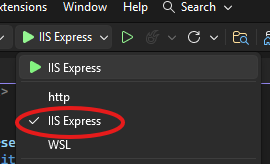
We need to change the server from "HTML" to "IIS Express"
- up near the top, find the HTML start dropdown
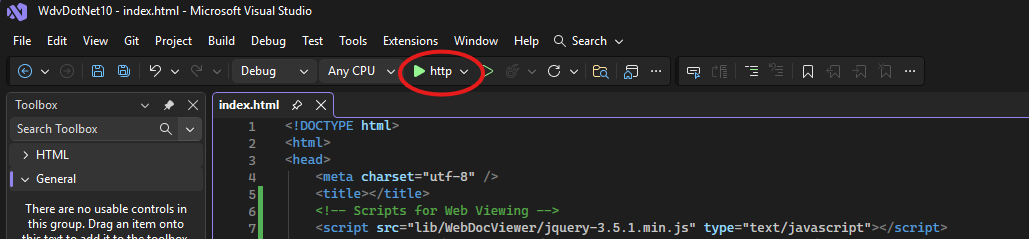
- change this to IIS Express
Back to Top
Run It
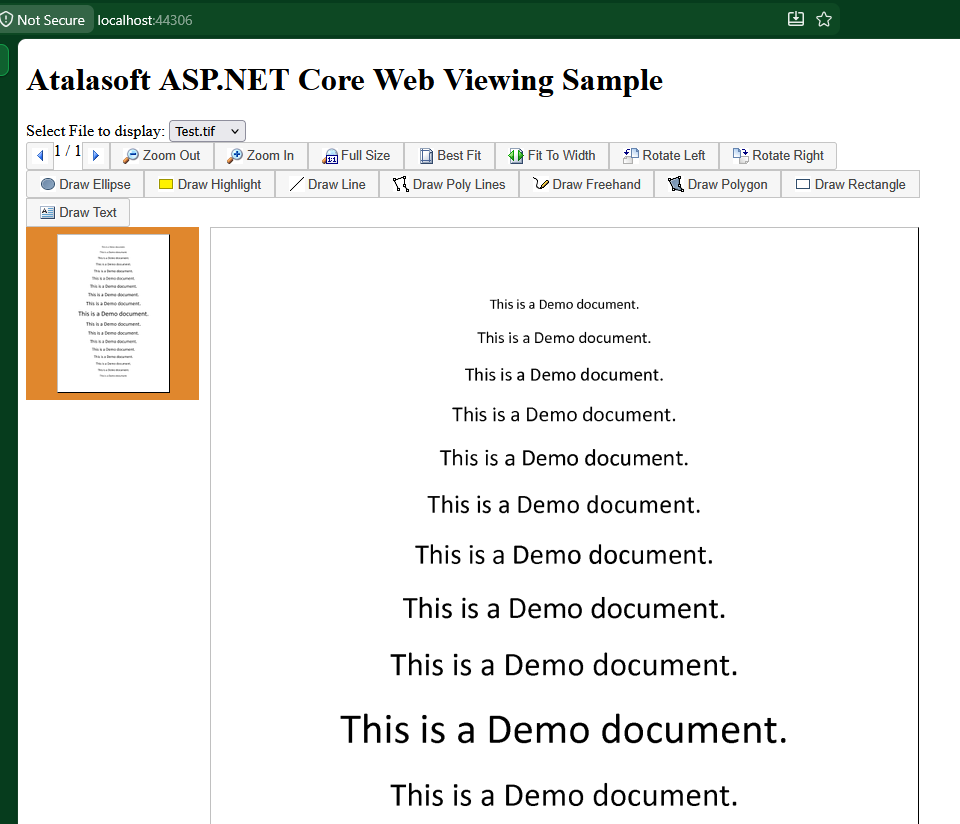
If all has gone well, you should now be able to run the solution and will see this on startup:
Back to Top
EXAMPLE 2 - ADDING WEB SCANNING (WingScan)
COMING SOON:
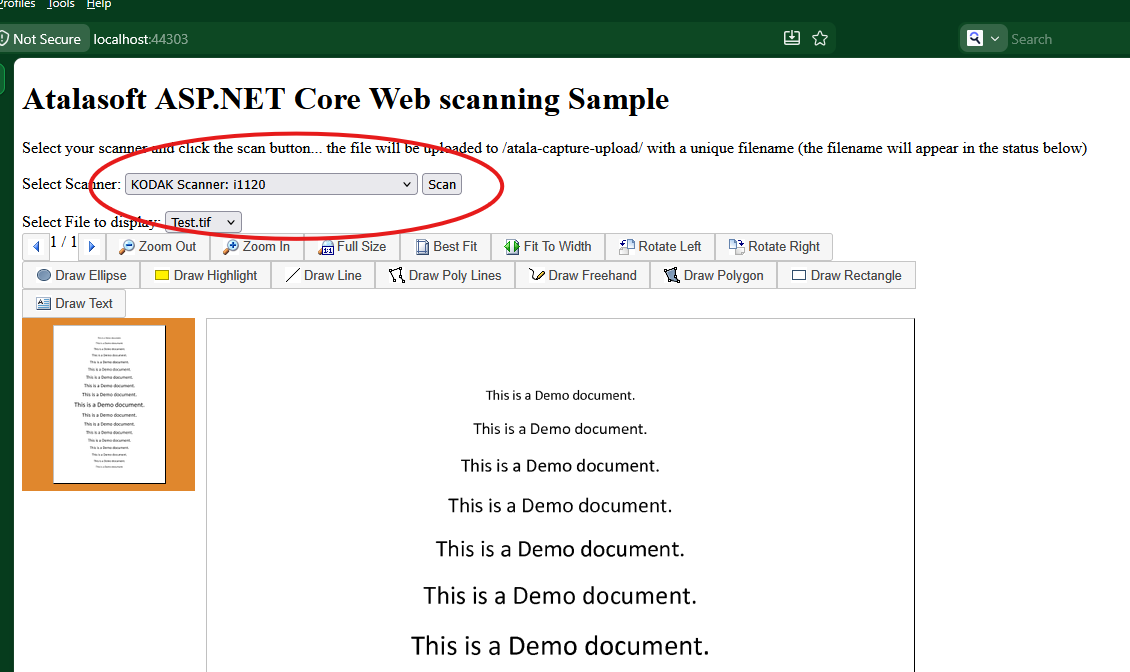
We will be fleshing out this section soon with an example where we build off the previous to add our WebCapture (WingScan web based scanning). The extremely abbreviated version of this until then is
- In the
wwwroot folder, add a new folder called atala-capture-upload
- In the
wwwroot folder add a new folder called WebCapture
- Copy the contents of C:\Program Files (x86)\Atalasoft\DotImage 2026.2\bin\WebResources\WebCapture into there
- under the
wwwroot folder, add a new empty folder named atala-capture-upload
- Update your
index.html page to add (in the header section after the Scripts for Web Viewing and before the Style for Viewer:
    <!-- Script for WebCapture -->
    <script src="lib/WebCapture/atalaWebCapture.js" type="text/javascript"></script>
- Also in your index.html page, in the \ cloture, add:
    <div id="scanDiv">
        <p>
            Select your scanner and click the scan button...
            the file will be uploaded to /atala-capture-upload/ with a unique filename
            (the filename will appear in the status below)
        </p>
        <p> </p>
        <p>
            Select Scanner:
            <select class="atala-scanner-list" disabled="disabled" name="scannerList" style="width:22em">
                <option selected="selected">(no scanners available)</option>
            </select>

            <!-- DO NOT USE <input type="button" class="atala-scan-button" value="Scan" /> -->
            <input type="button" id="scanNOW" value="Scan" onclick="scanWithSelectedScanner(); return false;" />
        </p>
    </div>
- Again, in your index.html, add another script block with the following
    <script type="text/javascript">
        function scanWithSelectedScanner() {
            Atalasoft.Controls.Capture.WebScanning.scanningOptions.scanner = $('.atala-scanner-list').val();
            Atalasoft.Controls.Capture.WebScanning.scan();
        }
        // this is a really simplified error handler for now. We will expand on this later
        function scanErrorHandler(msg, params) {
            alert(msg);
        }
    </script>
- Now, also find where you initialized your viewers - find this:
        var _viewer;
        var _thumbs;
        // Initialize Web Viewing
        $(function () {
            try {
                // Initialize Web Document Viewer
                _viewer = new Atalasoft.Controls.WebDocumentViewer({
                    parent: $('#_containerViewer'),
                    toolbarparent: $('#_toolbar1'),
                    serverurl: 'wdv',
                    allowannotations: true,
                    forcepagefit: true
                });
                _thumbs = new Atalasoft.Controls.WebDocumentThumbnailer({
                    parent: $('#_containerThumbs'),
                    serverurl: 'wdv',
                    allowannotations: true,
                    viewer: _viewer
                });
                loadFile();
            } catch (error) {
                appendStatus("Thrown error: " + error.description);
            }
        });
- Insert this code just inside the try block before
_viewer:
                    //Initializes web capture
                    Atalasoft.Controls.Capture.WebScanning.initialize({
                        handlerUrl: 'wcs',
                        onUploadCompleted: function (eventName, eventObj) {
                            if (eventObj.success) {
                                // for this demo we are just going to notify the user of the filename uploaded
                                // in your app you may want to take additional action. eventObj.documentFilename will have the name of the file that got uploaded
                                //document.getElementById('resultDiv').innerHTML = "Status: Upload Success... " + eventObj.documentFilename;
                                appendStatus("Status: Upload Success... " + eventObj.documentFilename);

                                //alert('atala-capture-upload/' + eventObj.documentFilename);
                                _thumbs.OpenUrl('atala-capture-upload/' + eventObj.documentFilename, '');
                            }
                        },
                        onScanError: scanErrorHandler,
                        scanningOptions: { applyVRS: false, pixelType: 0, showScannerUI: true }
                    });
- so that block of script now looks like this:
    var _viewer;
    var _thumbs;
    // Initialize Web Viewing
    $(function () {
        try {
            //Initializes web capture
            Atalasoft.Controls.Capture.WebScanning.initialize({
                handlerUrl: 'wcs',
                onUploadCompleted: function (eventName, eventObj) {
                    if (eventObj.success) {
                        // for this demo we are just going to notify the user of the filename uploaded
                        // in your app you may want to take additional action. eventObj.documentFilename will have the name of the file that got uploaded
                        //document.getElementById('resultDiv').innerHTML = "Status: Upload Success... " + eventObj.documentFilename;
                        appendStatus("Status: Upload Success... " + eventObj.documentFilename);

                        //alert('atala-capture-upload/' + eventObj.documentFilename);
                        _thumbs.OpenUrl('atala-capture-upload/' + eventObj.documentFilename, '');
                    }
                },
                onScanError: scanErrorHandler,
                scanningOptions: { applyVRS: false, pixelType: 0, showScannerUI: true }
            });

            // Initialize Web Document Viewer
            _viewer = new Atalasoft.Controls.WebDocumentViewer({
                parent: $('#_containerViewer'),
                toolbarparent: $('#_toolbar1'),
                serverurl: 'wdv',
                allowannotations: true,
                forcepagefit: true
            });
            _thumbs = new Atalasoft.Controls.WebDocumentThumbnailer({
                parent: $('#_containerThumbs'),
                serverurl: 'wdv',
                allowannotations: true,
                viewer: _viewer
            });
            loadFile();
        } catch (error) {
            appendStatus("Thrown error: " + error.description);
        }
    });
- In your Program.cs page, change
app.Map("/wdv", wdvApp => { wdvApp.RunWebDocumentViewerMiddleware(new WebCaptureDotNet10.MyWdvCallbacks()); });
to
app.Map("/wcs", wcsApp => wcsApp.RunWebCaptureMiddleware())
    .Map("/wdv", wdvApp => { wdvApp.RunWebDocumentViewerMiddleware(new WebCaptureDotNet10.MyWdvCallbacks()); });
- Build and run the solution
Back to Top
Sample Apps And Resources Download
It is our hope that you've been following along with the tutorial and have successfully built your solution. However, if you've run into issues or if you want a working reference app, we've implemented the WdvAspNetCoreSample three separate times. Once with manual client-side package install, one with bower packages and one with NPM packages.
Back to Top
CONCLUSION
In many respects we have barely even scratched the surface of the WebDocumentViewer and WebDocumentThumbnailer. This paper was meant as a very basic getting started that will serve you well as a step by step guide to just getting the viewer set up and working under ASP.NET Core. Atalasoft support engineers use a very similar base "boilerplate" app that we used as our inspiration for this demo nearly every day .. as a quick test harness / repro base solution to quickly test customer cases/issues and to test out various coding ideas having to do with WDV/ WDT.
In order to keep this document to a manageable size, we will end here for now. There are plans in the works for more advanced tutorials.. all of those will focus on the starting apps we've done here.
Original Article
Last Update
2026-10-22 - TD - (Fixed outdated links)